
Before processing each payroll run, you will first need to retrieve the latest Revenue Payroll Notifications (RPNs) for your employees from Revenue, in order to ensure the most up-to-date tax credits and cut off points are applied to their pay.
This in turn will also update the 'Revenue Details' section of each applicable employee record accordingly.
- Each pay period, you will be given a prompt within your Payroll utility to retrieve the latest RPN for each of your employees and apply any updates.
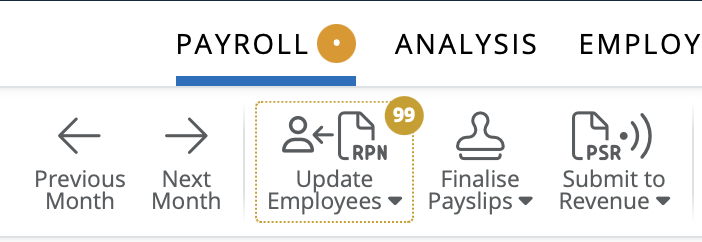
To commence this task, select Update Employees on the menu bar:
- Next, click Check For and Retrieve RPNs Now..
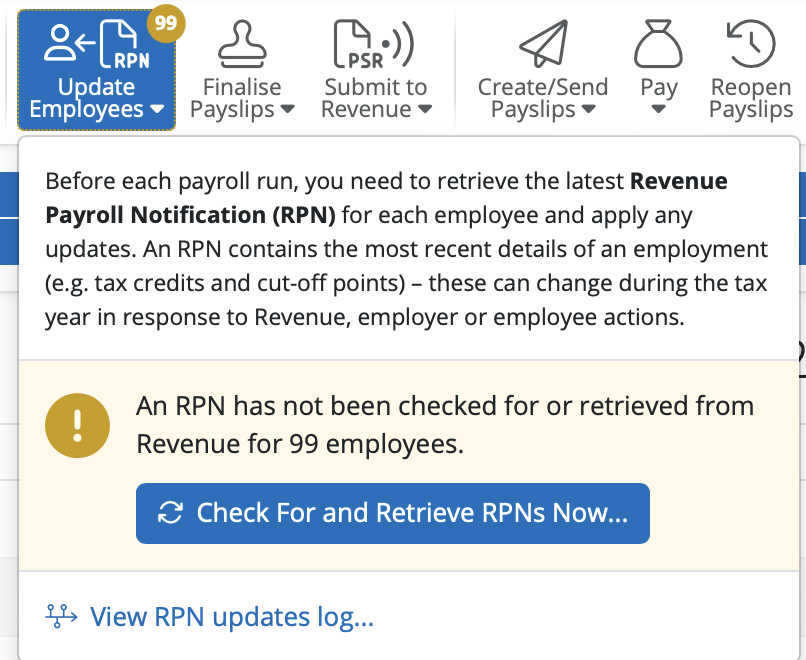
BrightPay will automatically connect to Revenue’s systems and retrieve all available RPNs. It will then match current employee data with the information within the RPNs.
a) if BrightPay detects that an existing employee's current Revenue information entered within the software differs from that in their latest RPN, this will be brought to your attention within the 'Updates' section.
- click on 'Apply Selected Updates' to apply the new corrected values in the RPN to each applicable employee's pay going forward.
b) if the RPN contains new employees which cannot be matched to an employee record in BrightPay, this will be brought to your attention within the 'To Be Added' section.
- click 'Add Selected Employees' to create a new employee record for each applicable employee.
Please note: setting up employee records in this manner only brings in the information that is included in the RPN, e.g. the employee’s name, PPS number and revenue details.
Further manual entry may thus be required in each employee record for employee information that is not included in an RPN e.g. the employee's start date, employee’s rate of pay, email address, bank details, annual leave entitlement, departmental allocation etc.
c) where existing employee data matches the data contained within their latest RPN, this will be brought to your attention within the 'Up To Date' section:
- No further action is currently required for the employees listed in this section.
Once all necessary updates have been applied, close out of the RPN utility to commence processing your periodic payroll.
Rehired employee causing RPN issues / duplicates
When an employee is rehired in the same tax year, a duplicate PPSN issue preventing RPN retrieval is usually caused by an Employment ID conflict between the old (ceased) record and the new (rehired) record.
To resolve this:
- Check the old (greyed-out) ceased employee profile and check the Employment ID — you will find this under the Employment tab
- Note the ID number (e.g. if it is 1, the rehired profile should be 2; if the previous record is 2, the rehired profile should be 3, and so on)
- Open the rehired employee profile and go to the Employment tab
- From the Employment ID dropdown, select 'I want to manually enter the ID'
- Enter the next sequential number from the leaver record
- Save the change and retry retrieving the RPNs
This applies when the employee has been rehired within the same tax year — the rehired record should always use the next consecutive Employment ID from the ceased record.
If you need to delete a duplicate employee, click on the duplicated record in the Employees tab > More > Delete. Ensure you are deleting the correct record as this action cannot be undone.
When no RPN is retrieved for a new employee, ask them if they have registered with Revenue for employment. If this is the employee’s first employment in Ireland, they will need to register / sign up for MyAccount with Revenue so that they can issue the correct tax credits and cut offs via the RPN.
You can print RPN details for each employee by going to the Employees tab > RPN icon > RPN Updates Log. This will bring RPN logs on screen. To print an employee's RPN log, click on the spanner icon on the right hand side of the screen > View RPN Details > Share Summary - this will give you a preview of the employee's RPN details. From here you can then download, print or email the RPN details using the icons in the top right corner.
FAQs
Q. I am getting an “Invalid Date Header” error when checking RPNs. How can I fix this?
A. This error is usually caused by the date, time or regional settings on your computer.
Please check the following on your PC:
- The time zone is set to: Dublin, Edinburgh, Lisbon, London
- The region is set to: Ireland
- The language is set to: English (Ireland)
- The calendar is set to: Gregorian Calendar
You can update these settings via the Settings menu on your computer.
Alternatively, you can simply ensure that the time, date and region are all set to Ireland, then try checking RPNs again.
Comments
0 comments
Article is closed for comments.