
PAYE Modernisation introduces two new processes - the automated retrieval of Revenue Payroll Notifications for each of your employees from Revenue and the submission of your payroll data each payroll run to Revenue.
For this two-way communication to take place between BrightPay and Revenue’s systems, your ROS digital certificate will be used.
Therefore, the computer that you run your payroll on will need to have your ROS Digital Certificate saved on it also.
In the event that you need to save your digital certificate to the computer on which you will be running BrightPay, the following ROS guidance is provided:
How to save your ROS digital certificate on to your computer
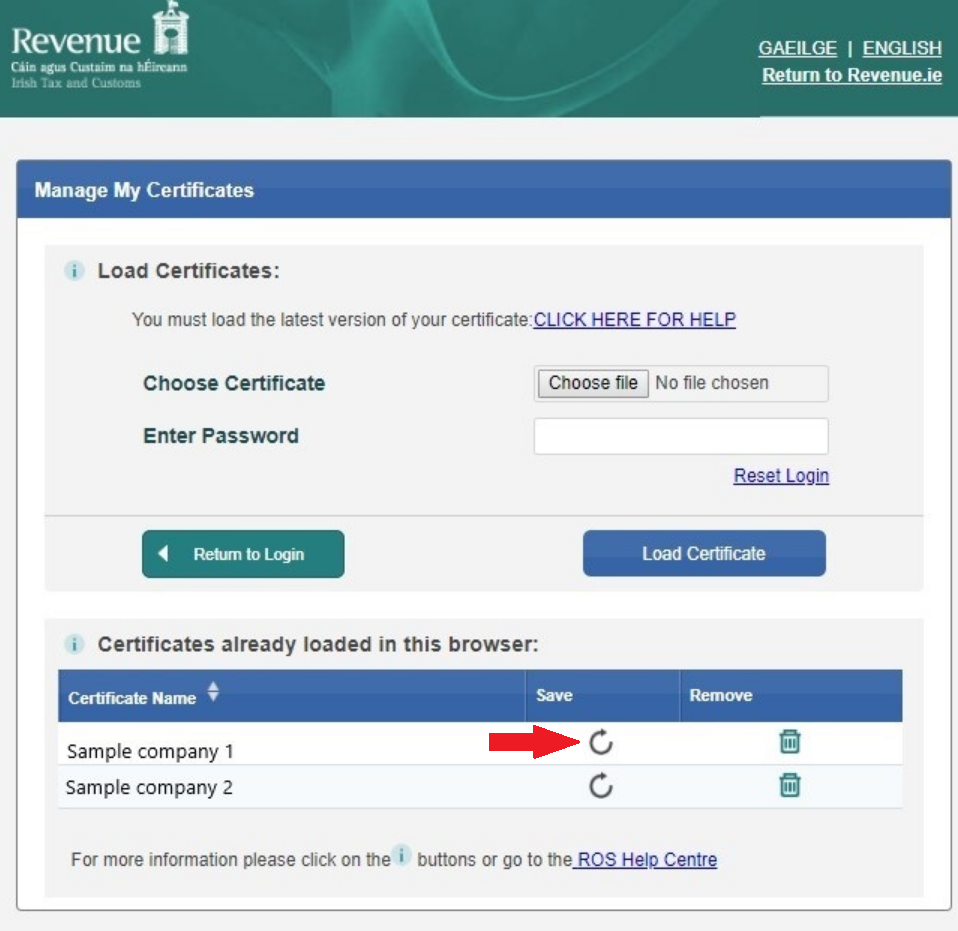
- On the ROS login page, click Manage My Certificates.
- After selecting 'Manage My Certificates', the next screen will confirm which digital certificates are already loaded on your computer.
Click the symbol under the 'Save' heading for the certificate you wish to use on your computer.
- Click Save at the prompt.
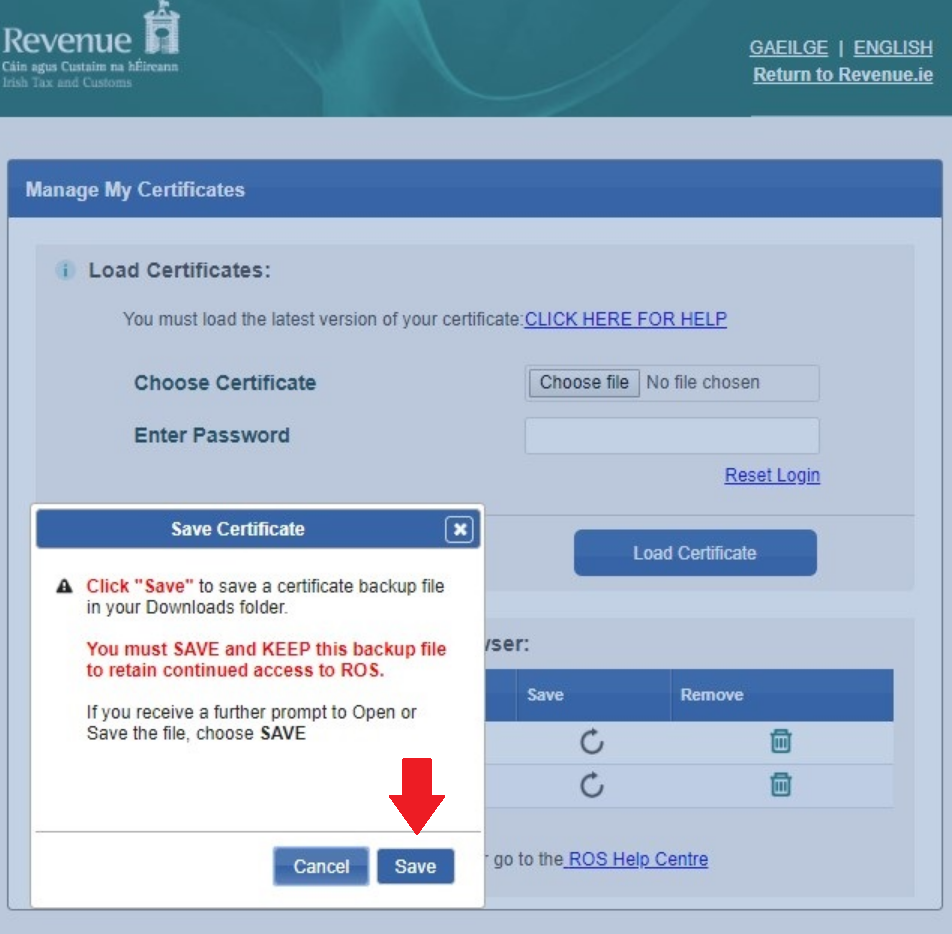
Depending on the browser you are using on your computer, the certificate will now either save automatically into your Downloads folder, or ask you to save the certificate to a folder of your choice.
If asked to save to a folder of your choice, it is recommended that you save the certificate into your RosCert folder, which is located in your ROS folder on your C drive.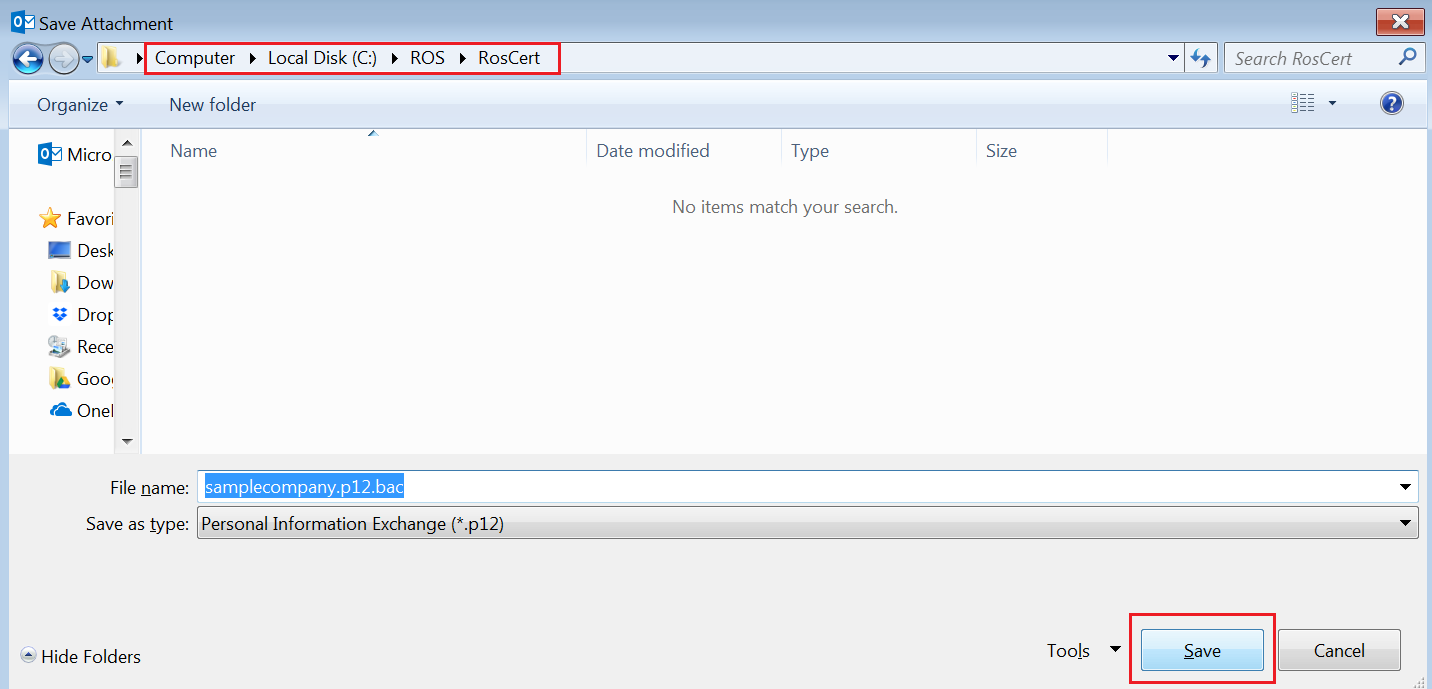
Please note: your certificate will save as a '.p12.bac' file.
As soon as your certificate is saved, you will now be ready to add your certificate into BrightPay.
- Please refer to article 'Adding a Revenue Digital Certificate - Employers' for guidance on adding an employer digital certificate into the software.
- Please refer to article 'Adding a Revenue Digital Certificate - Agents' for guidance on adding an agent digital certificate into the software.
Comments
0 comments
Article is closed for comments.