
BrightPay Employee Self Service Portal provides a web-based portal where employees can view/download their payslips and other payroll documents and view their calendar.
As soon as you have enabled Self Service access for employees (for assistance with this, refer to article 'Enabling Employee Access to Self Service Portal'), these employees now have permission to access to their Employee Self Service portal.
In order for an employee to log into their Employee Self Service Portal they will need to register for a Bright ID. (for assistance with this, refer to article 'Employees Registering a Bright ID').
Employees can log in to their Self Service Portal here.
Sending Self Service Invitation Emails
1) Log in to your BrightPay account and access the employer in question within 'Employers'.
2) Click 'Employee Portal > Settings > More'.
3) Under 'More' select 'Email Employee Portal Instructions to Employee(s)'.
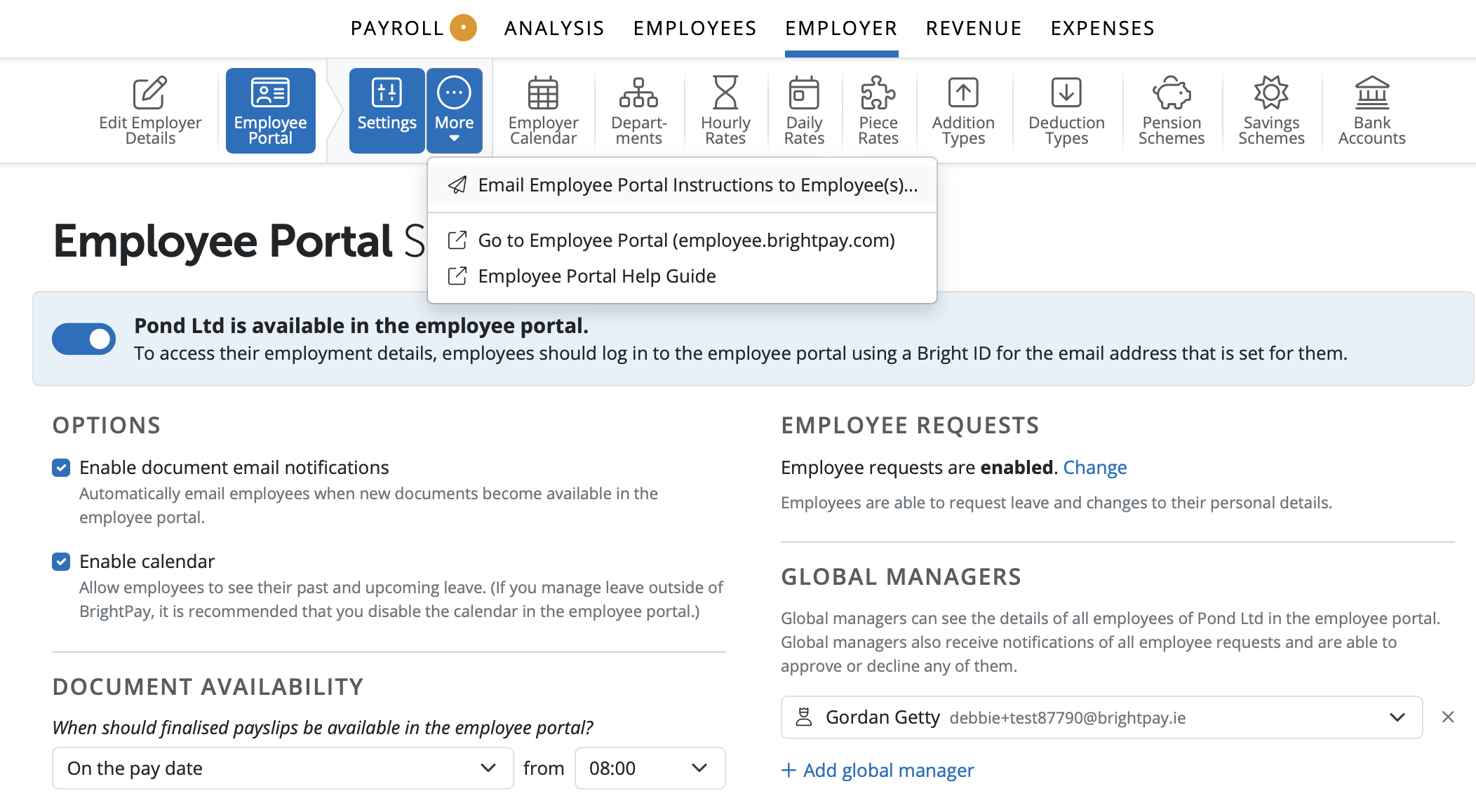
4) Select each employee that you would like to send a personalised email to with an overview of Self Service and instructions on how to log in.
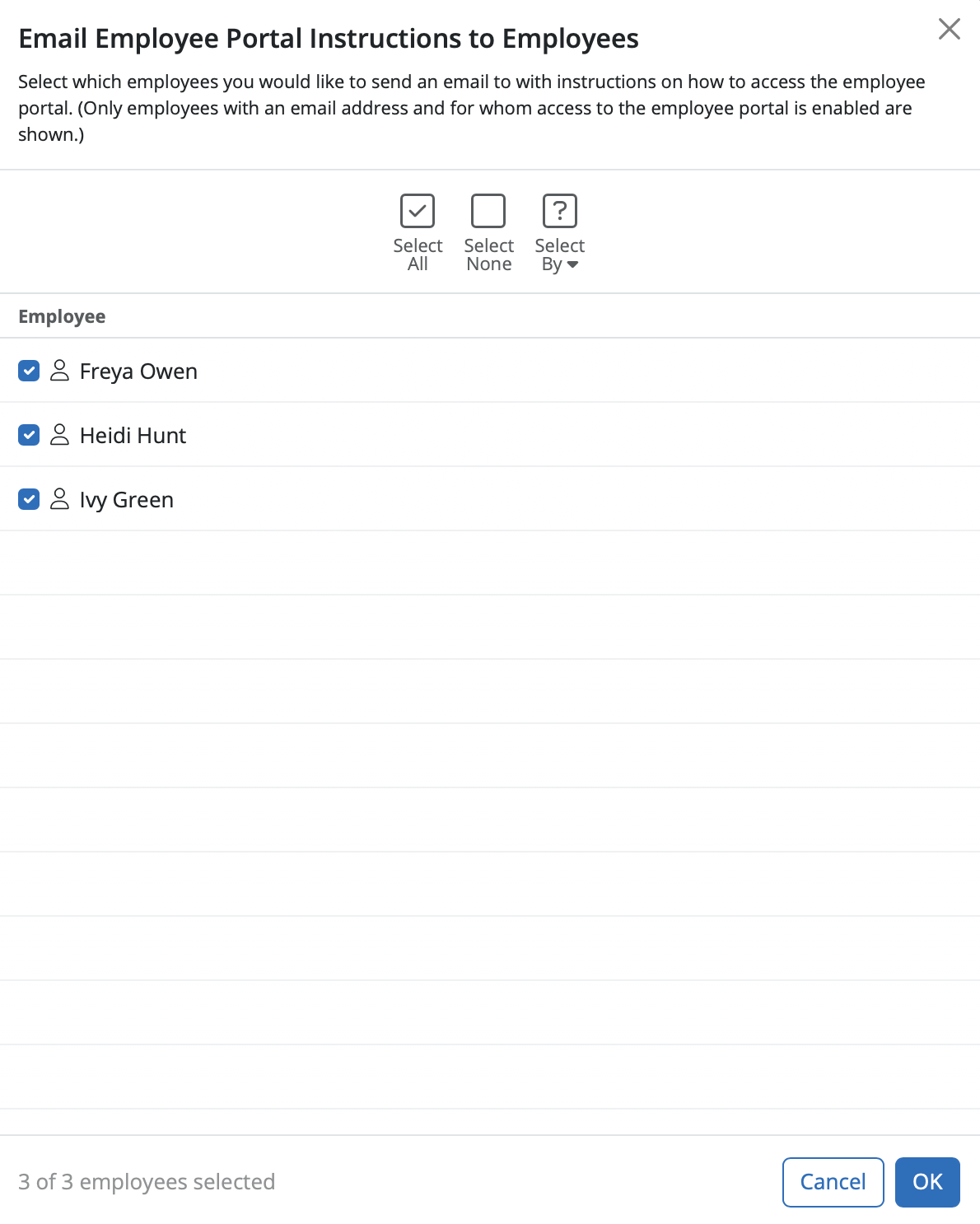
Please note: employees for whom self service has not been enabled or do not have a valid email address within their employee record, will not be available for selection.
5) Once all employees are selected, when ready and click 'OK'.
All employees selected will be sent a welcome email containing instructions on how they can log in to their own self service portal.
If an employee wants to change their email address, you will need to update it in BrightPay within their employee record.
They will need to set up a BrightID again with the new email address. Once you have amended the email address in BrightPay, you can invite them to the portal again by going to Employer > Employee Portal > Settings > More > Email employee portal instructions to employees.
Comments
0 comments
Article is closed for comments.