
*Please note: this particular functionality must be activated by the employer to be available to the employee
For employees to submit and track leave requests through the Employee Portal, the following steps need to be completed:
A video tutorial for an employee requesting leave on the Employee Self Service Portal can be accessed here.
To request Holidays/Annual leave through your Employee Self Service portal:
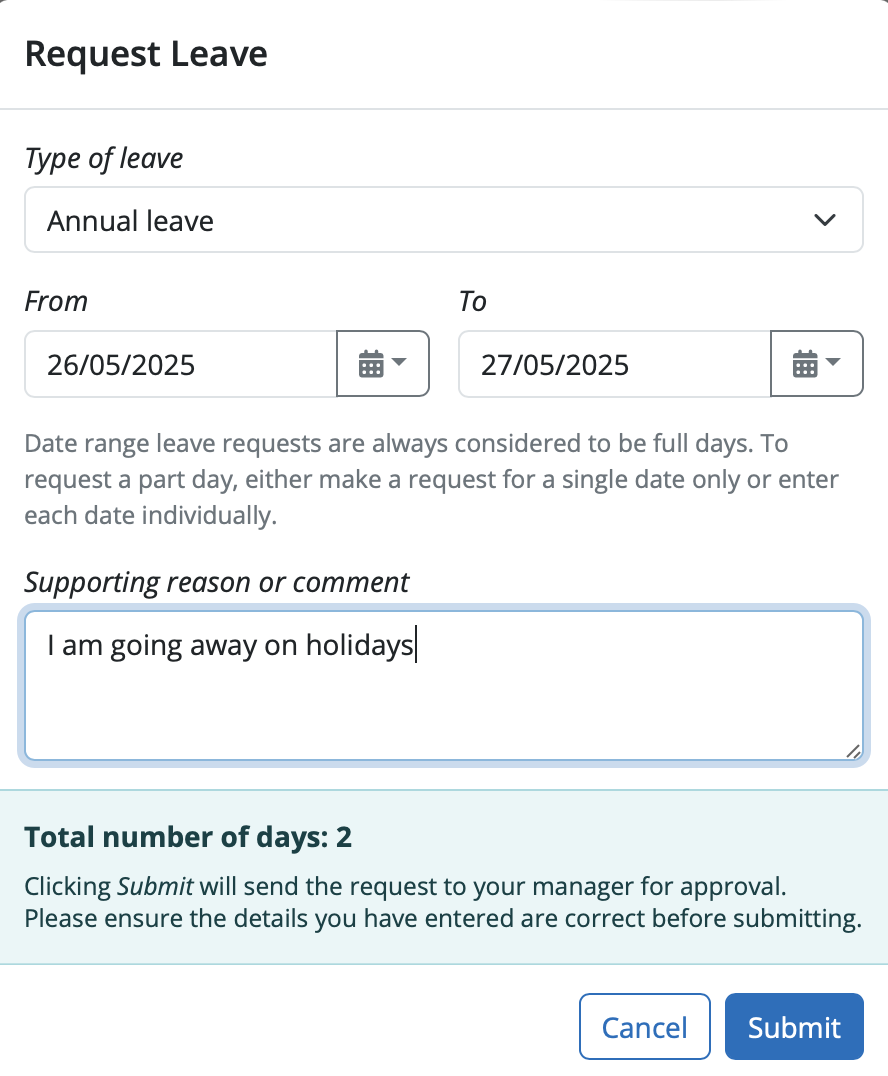
1) Select 'Request Leave', either on your dashboard or when accessing the full calendar.
2) Select the type of leave you require - annual or unpaid.
3) Click into and enter the Dates in the 'From' and 'To' fields. Enter any supporting reason or comment regarding the leave, if required. The number of days selected in the date range for the request will show.
If is one individual date , enter in the same date into the From and To fields and you can select whether it is a full day, half day, quarter day or three quarters day.
4) Click 'Submit' to send the request for leave for approval.
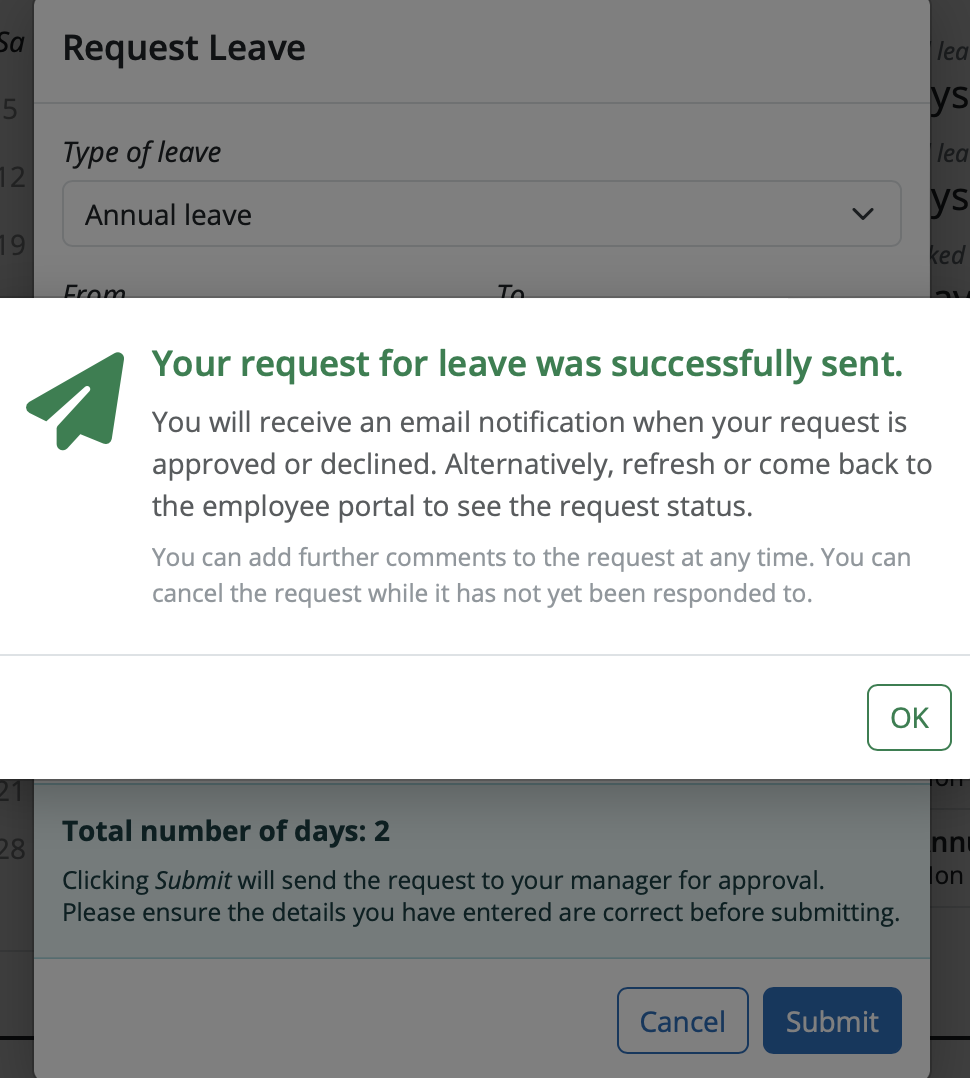
Your requested days will now be marked on your calendar as pending, and your employer will receive a notification with the details of your request for approval.
If your leave request is approved by your employer, you will receive email notification confirming this. Your calendar will be updated accordingly to show the approval. Should your leave be rejected, you will receive email notification confirming this.
You will be able to view your leave request history at the bottom of the screen in the Calendar section. You can see the status of each request, the type of request and if any comments have been made.
You can add a comment to any pending request by selecting the blue comment box opposite the request. The approver will get a notification of the comment added to the request. If the approver makes a comment to the pending request you will get a notification of the comment being added.
If an employee does not see an option to book leave, check that the calendar is enabled in the Employer > Employee Portal section. If using the BrightPay employee app and cannot change the calendar year to book the leave, check if there are any updates waiting / required on the phone.
Note - Statutory leave types—such as Statutory Maternity Leave, Statutory Paternity Leave, or SSP cannot be requested through the Employee self service Portal (EESSP).
Statutory leave requests and the associated statutory payments must be processed and recorded by the payroll administrator or employer within BrightPay. Employees should notify their employer or HR department directly if they wish to take statutory leave, and the employer will then enter the relevant details into BrightPay.
Managers will be notified via email when an employee requests leave. The three different types of managers are assigned in the employer in BrightPay - Global Manager, Department Manager and Line Manager.
Client Standard Users / Super Users can view and add leave, however they will not receive an email when an employee requests leave. If they wish to receive notification of a leave request, they will need to be set up as a Global manager under the Employee Portal section as well as a Client User.
Comments
0 comments
Article is closed for comments.