
This utility allows you to re-open the last pay period finalised for one or more employees.
Important notes regarding corrections
- Revenue instructs that payroll records and submitted PSRs should always match what was actually paid to employees at the time of payment. Therefore users should only change past records where they differ from what was actually paid.
- If an employee has been underpaid in a previous pay period and their payroll record and submitted PSR reflect this, the correction of the underpayment should be made in the next payroll run you perform.
- Likewise, if an employee has been overpaid in a previous pay period and their payroll record and submitted PSR reflect this, the correction to recoup this overpayment should be made in the next payroll run you perform.
To Re-open the Last Pay Period Finalised
To access this utility, click Payroll:
1) On the payment schedule bar, select the pay period you wish to re-open
2) Click Re-Open Payslips on the menu toolbar
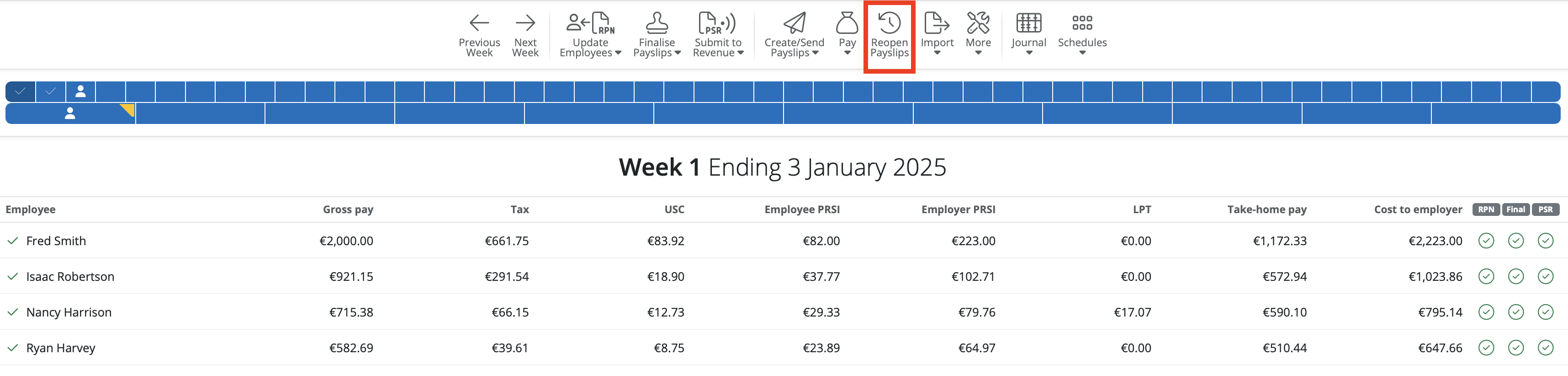
3) Select the employee(s) you wish to re-open payslips for
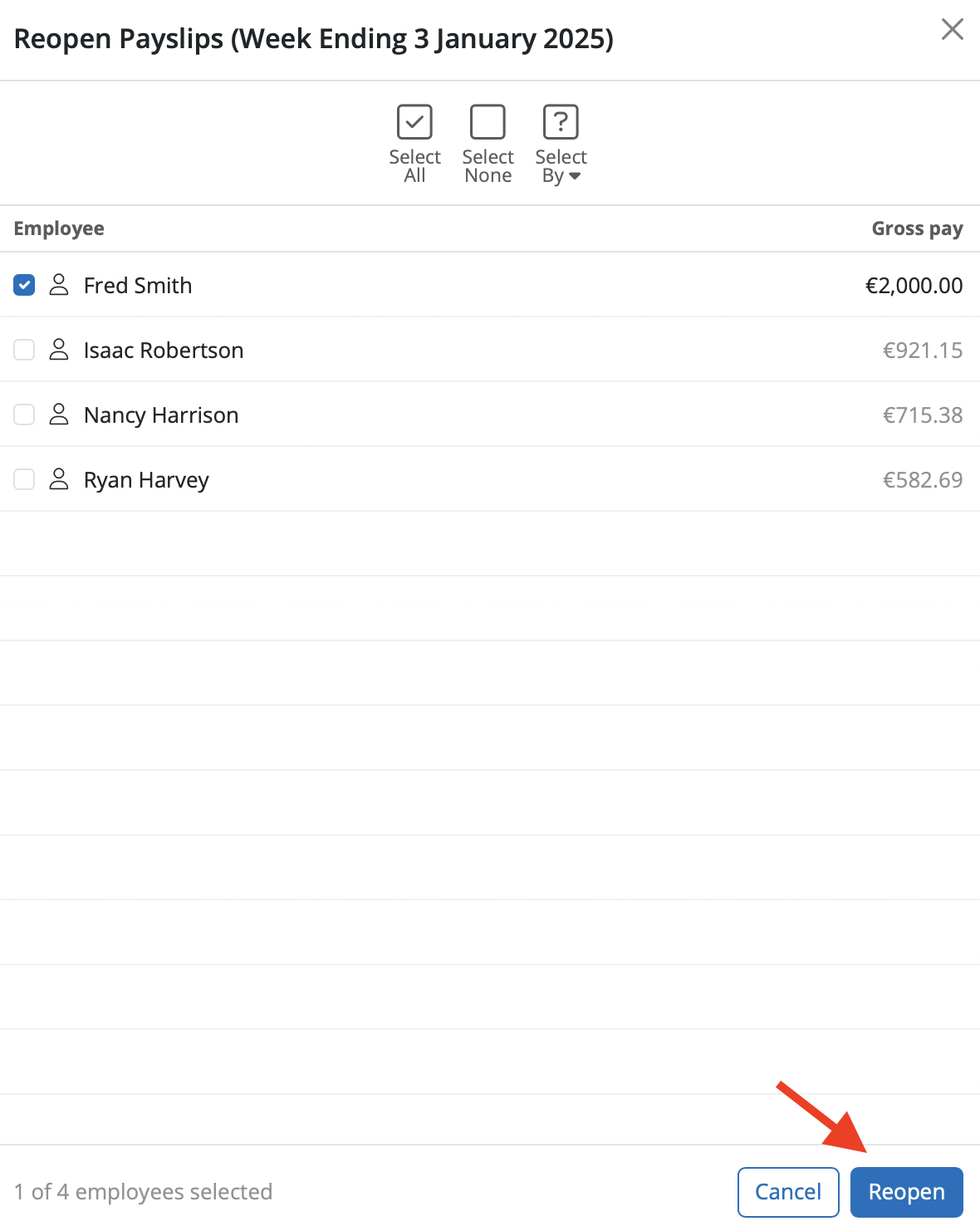
4) Click Re-open.
The selected employee(s) payslips will now be available for editing and finalising again.
Re-finalising Payslips
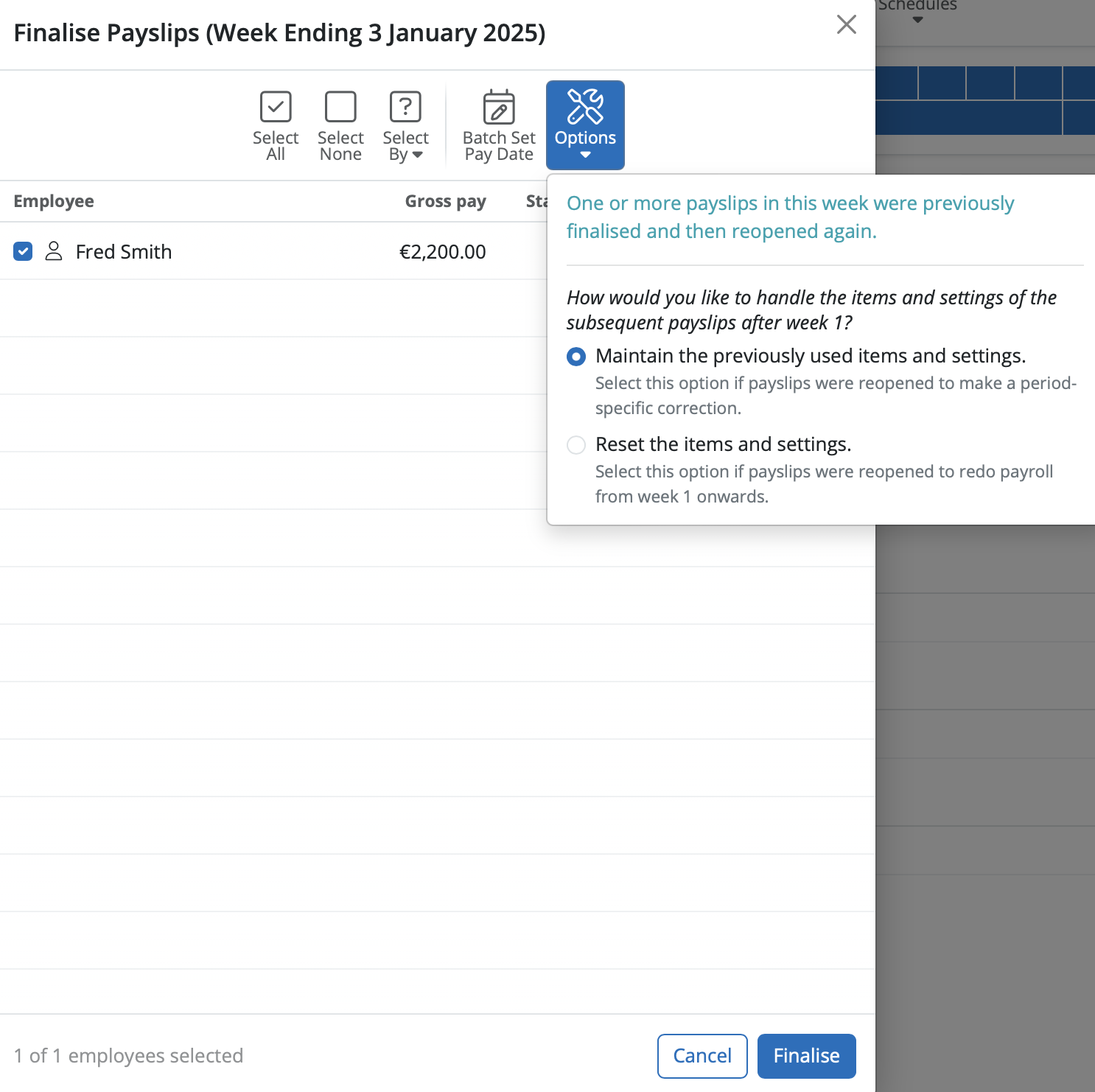
When re-finalising payslips for the last pay period, you can choose how you wish to handle the payslips going forward. To access these options, click on the 'Options' icon at the top of the screen.
- Maintain the previously used items and settings – users should select this option if payslips were re-opened to make a period-specific fix only. This option will remember and retain all the payslip amounts that have since been entered in subsequent pay periods
- Reset the items and settings – select this option if payslips were re-opened to re-do the payroll from the period opened back to. All subsequent pay periods will be cleared down accordingly for the user to enter the pay items they require
Impact of Corrections on Payroll Submissions (PSRs)
a) If you have not yet submitted the PSR to Revenue for the employee payslip(s) you have re-opened and amended, any amendments made to an employee's payslip will be automatically updated within the unsent PSR when the payslip is finalised again. If all employees' payslips in the pay period are re-opened, the unsent PSR will be deleted altogether.
b) If, however, you have already submitted the PSR to Revenue for the employee payslip(s) you have re-opened and amended, this will require a 'correction submission' to be made to Revenue in order to report the change(s) made.
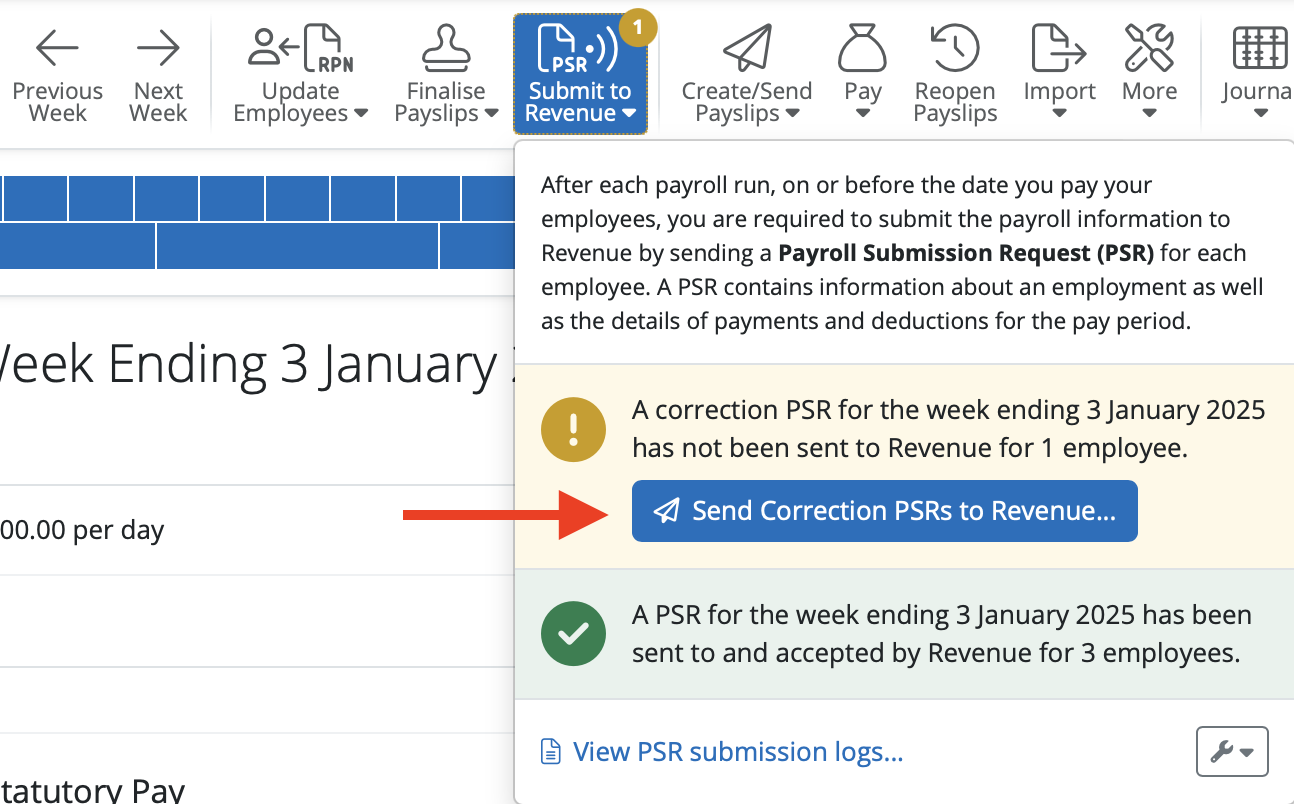
After making a correction, where the software detects that a correction submission is required, a Correction PSR will automatically be created for you, which you will be prompted to submit:
(If there are no changes to the pay details like tax, PRSI, USC, etc., then submitting a correction PSR is not required.)
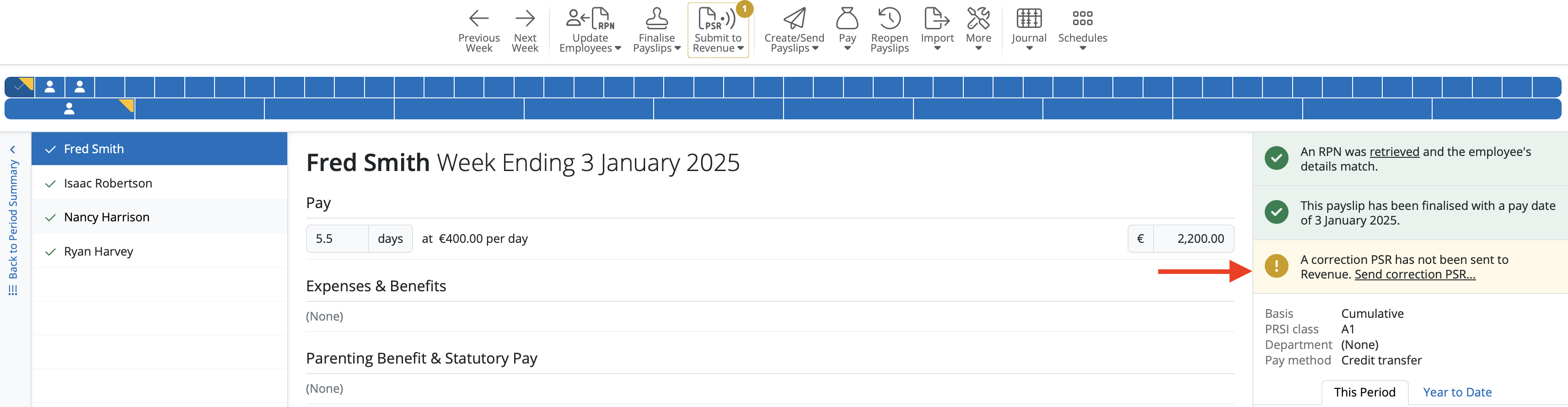
- To submit the correction submission to Revenue, click Send Correction PSR...
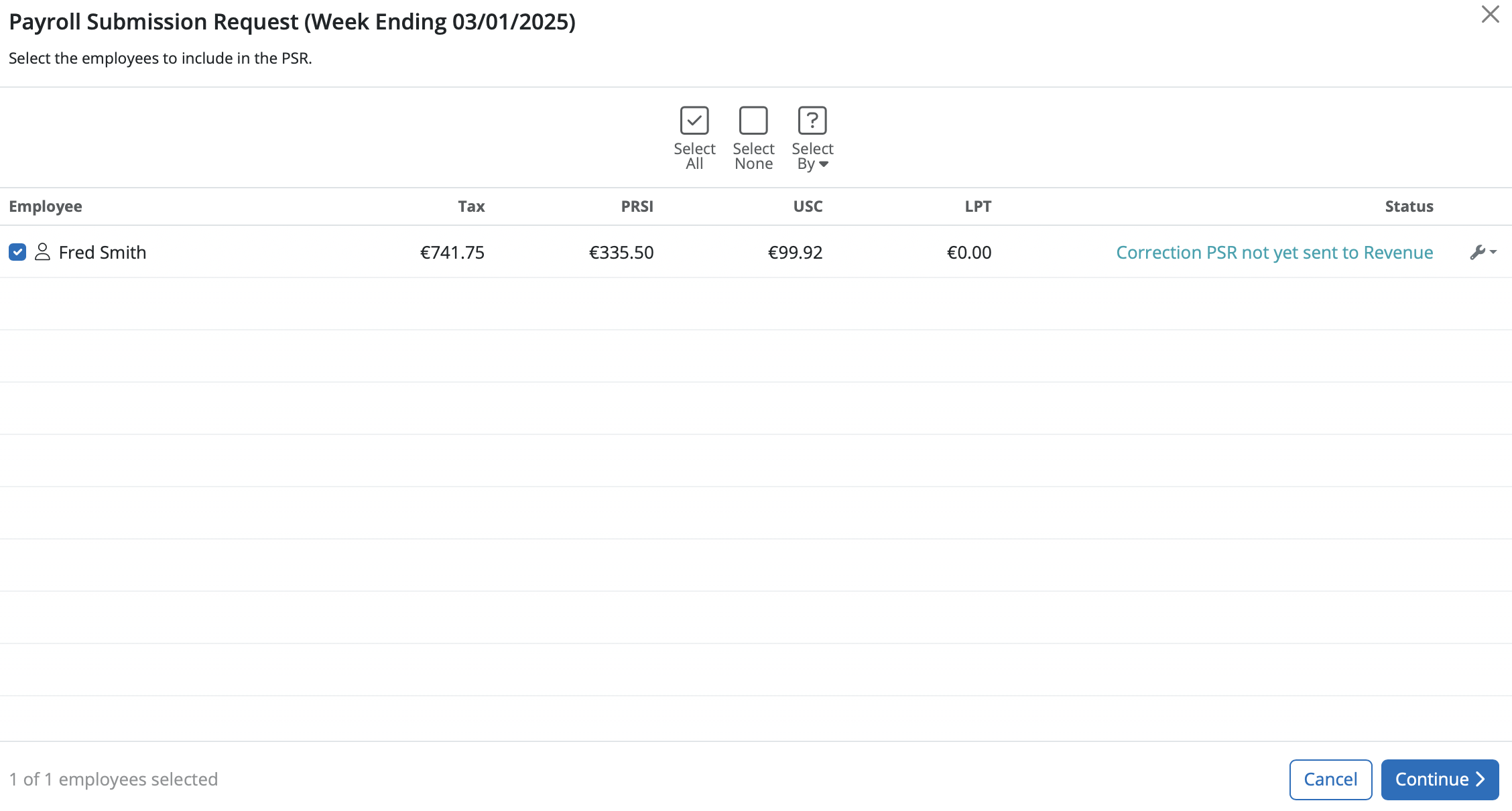
- Select the employee(s) in question on the next screen and click Continue
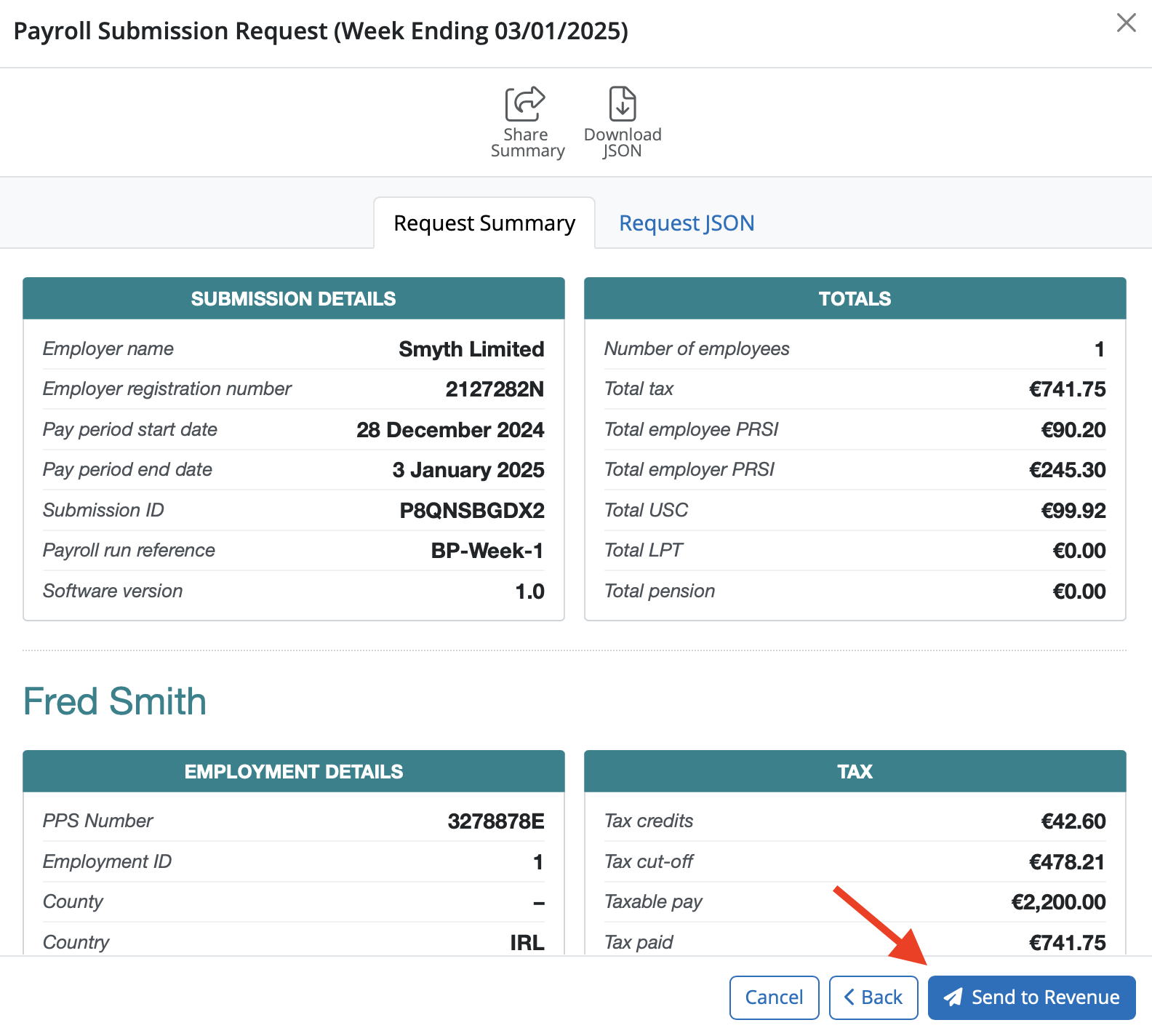
Contents of the corrections submission will be displayed in a readable format on screen. Click 'Send To Revenue' to report the amendments made to Revenue:
- On successful submission to Revenue, confirmation will be provided on screen.
- Click Close to continue with your payroll.
Comments
0 comments
Article is closed for comments.