
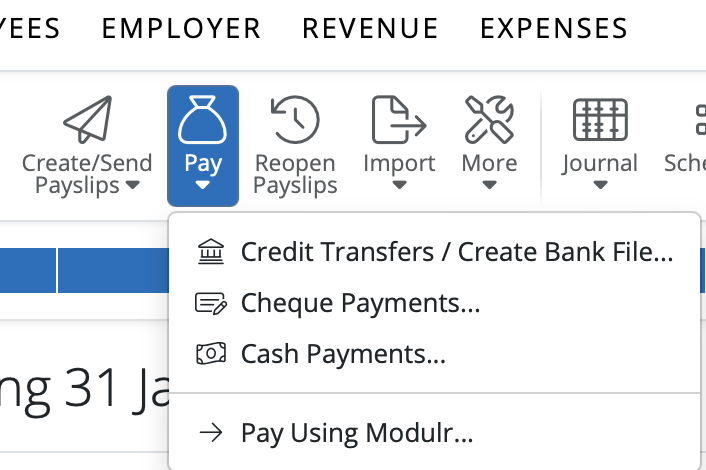
1) After finalising your payroll period in Payroll, simply select 'Pay > Credit Transfers / Create Bank File...' on the menu toolbar.
All employees whose payment method is set to 'credit transfer' will be displayed on the screen and the report will show the breakdown of the credit transfer payments to these employees.
To add or amend the Bank details fro any employees - go to Employees - Select the relevant employee - Payment. Once the Payment is set to Credit transfer you will see Bank detail fields.
2) To subsequently print/email/export the Credit Transfer Payments Report, simply click the Export/Share option on the menu toolbar.
Bank files are defaulted to be created as emts files, which is a standardised electronic batch payment file format. If you require another file format such as a xml file or csv file, you can change the suffice on the file name - click in the 'File name' field and replace 'emts' with your required bank file format, ie xml or csv.
Notes to the above:
Employees who are set to be paid by credit transfer and who have left in the period being paid will be deselected by default. A warning message will now appear if a leaver is excluded from the bank payment file, allowing users to confirm whether this is intentional (e.g. final pay already issued) or whether the employee needs to be included.
Where such employees have already received their final payments earlier in the pay period, this helps to avoid inadvertently paying them again.
Paying Employees using a Bank Payment File
For employees paid by credit transfer, a Bank Payment File can be created to upload through your banking software:
Please note: to be able to use this option, employer bank details must first be entered within your Employer utility and you must have approval from your bank to submit bank payment files to them.
Information on adding employer bank details can be found in article 'Adding / Amending Bank Accounts'
1) Select the Credit Transfers tab heading.
2) Select the employees you wish to include in the bank payment file on the left hand side.
3) To create the Bank Payments File, click Create Bank File on the bottom right of the window.
4) Select the Bank Account you wish to pay from and select the appropriate bank File Format.
5) Select the Processing date you wish to pay the employees (this will default to the payment date set up on your schedule)
6) Enter Business Entity Identifier (if required by your bank)
7) If using SEPA file format, enter the SEPA Creditor ID / OIN as provided by your bank
8) Click Download to save the bank file in your computer's Downloads folder. The bank payment file is now created and can be uploaded through your bank facility when ready.
BrightPay supports the PAIN.001 format for SEPA credit transfer files. This format is widely used by Irish banks for processing salary payments via bank file uploads.
Note: The Sort Code & Account Number must be entered into BrightPay and based on this information the IBAN will populate. For the BIC field, you do not need to include the XXX reference at the end.
FAQs
Q. Will BrightPay be updated to support the upcoming AIB / ISO 20022 SEPA file changes?
A. Yes. BrightPay will be fully compatible with the new ISO 20022 SEPA file format being introduced by the banks. The previously communicated 15 November 2026 deadline for this change has now been delayed. A further update on the new implementation date is expected following an industry meeting scheduled for 6 October 2026. We will update this article as soon as a new date is confirmed.
Comments
0 comments
Article is closed for comments.