
BrightPay provides a web-based portal where employees can browse and download their history of payslips and other payroll documents, view their payroll calendar, including annual leave and parenting leave, and view their personal details.
The Employee Self Service Portal is enabled by default in BrightPay Cloud. We recommend reviewing the Settings in the Employer tab> Employee Portal.
If you don’t wish to use the portal, you can disable it.
There are two ways for an employer/bureau to set up an employee' access to self service portal:
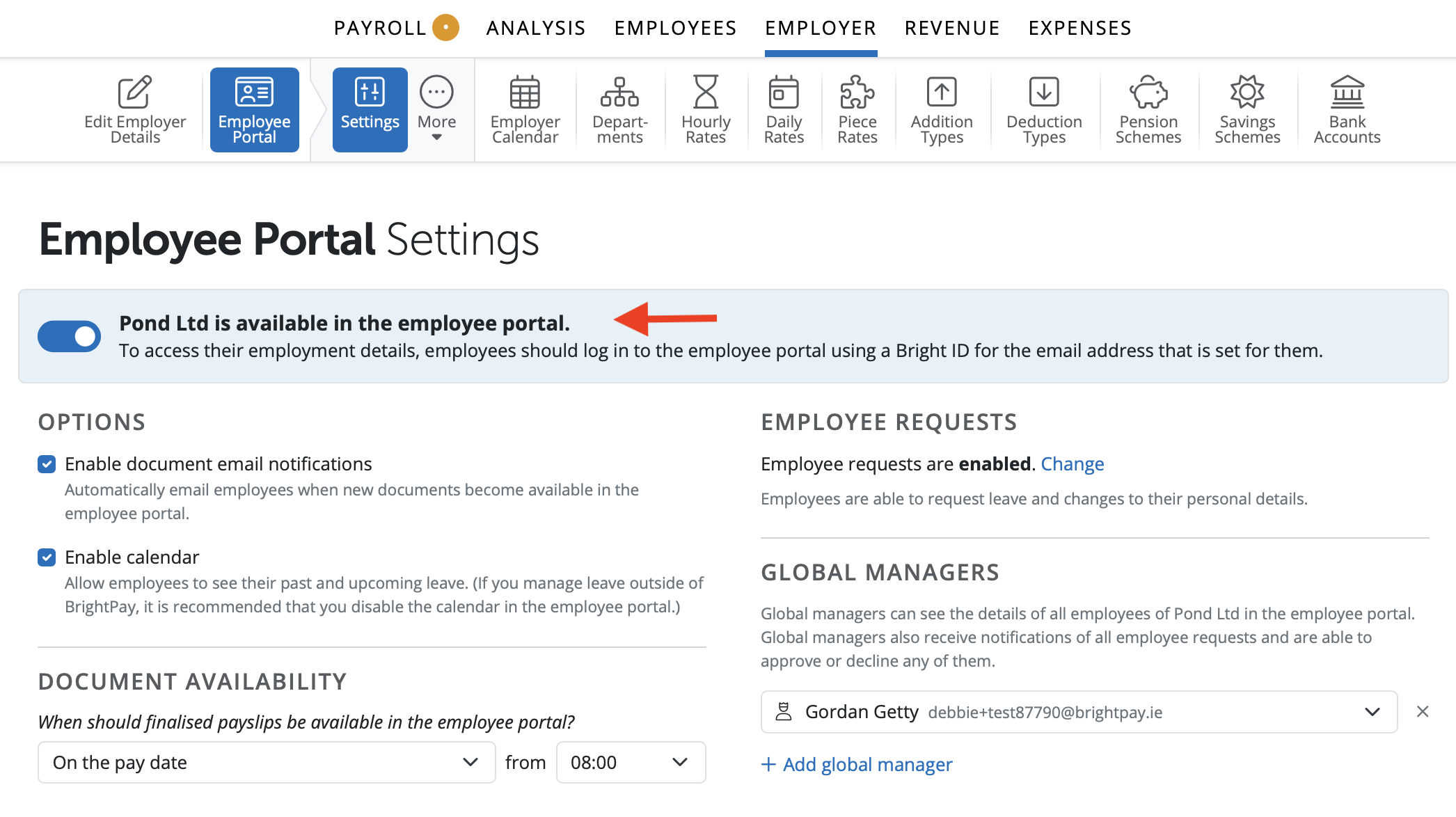
1. Select all Employees to have access to Self Service Portal
1) Within your BrightPay organisation, open the employer you require.
2) Go to Employer.
3) Choose 'Employee Portal > Settings'.
4) Select 'Employer is available in the employee portal' to make any required changes and click 'Save'.
2. Give an Individual Employee access to Self Service Portal
1) Within your BrightPay organisation, open the employer you require.
2) Go to > Employees > Select an Employee > Edit Details
3) Choose the 'HR' tab.
4) Ensure an employee has an email address entered in their profile in order to enable self-service for this employee.
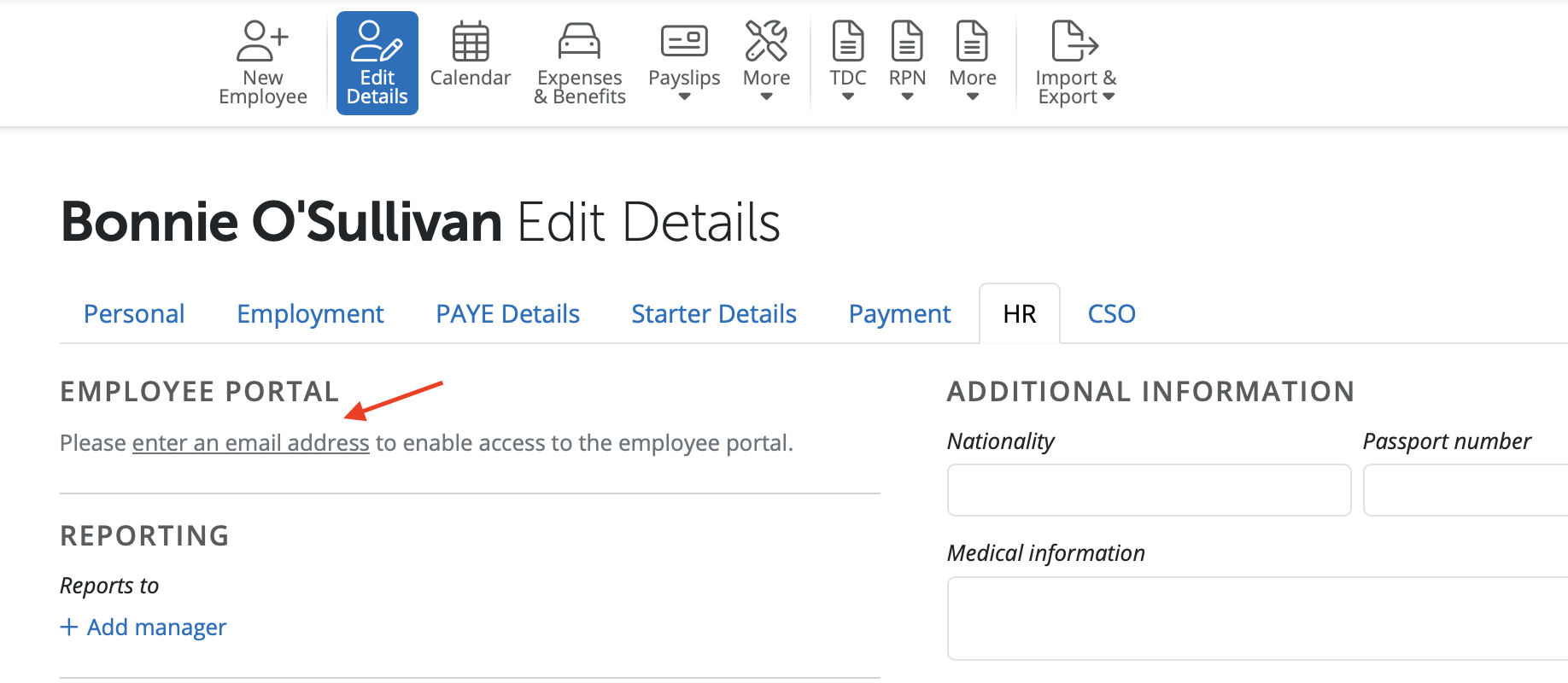
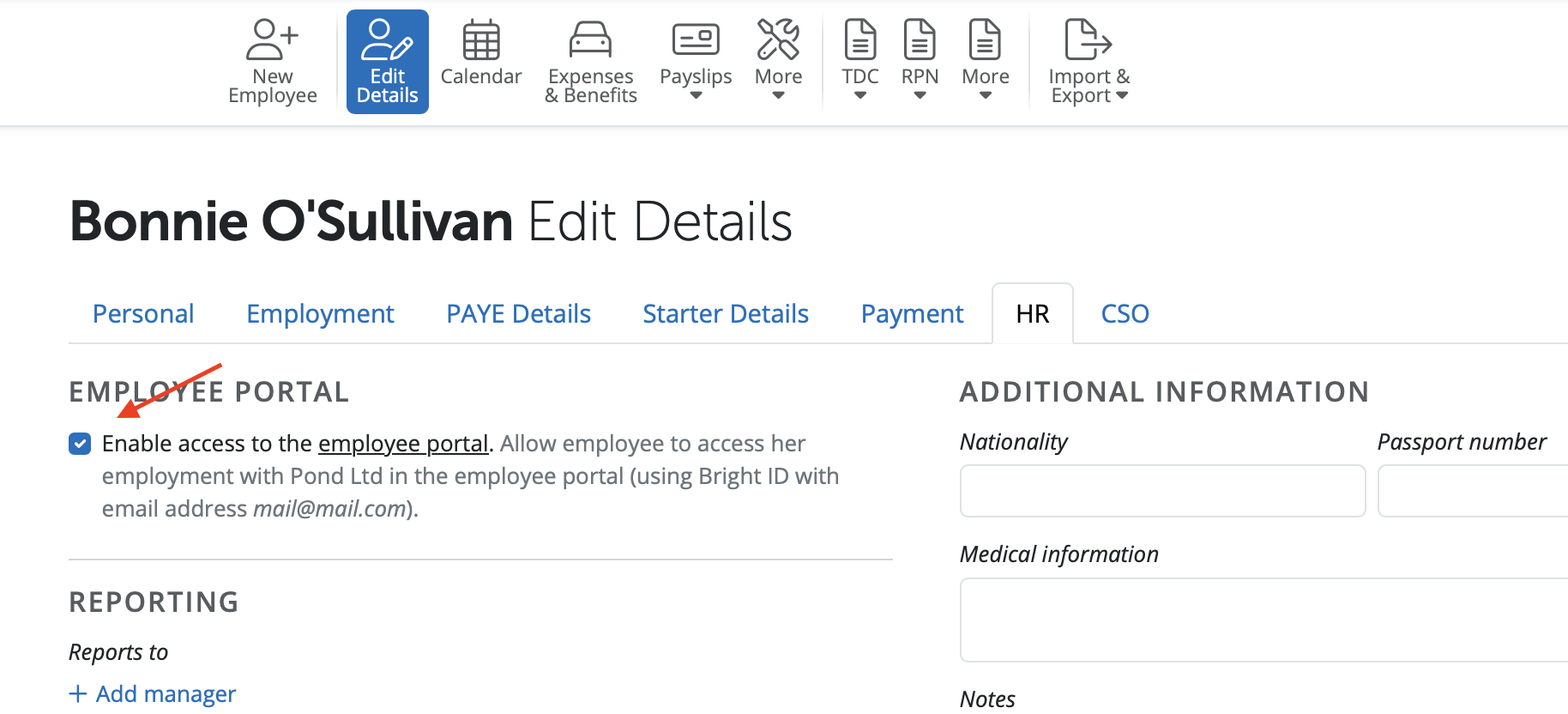
5) Select 'Enable access to the employee portal' in order to allow the individual employee access to their self service portal and click 'Save'.
Comments
0 comments
Article is closed for comments.