
BrightPay Employee Self Service Portal provides a web-based portal where employees can view/download their payslips and other payroll documents and view their calendar.
As soon as you have enabled Self Service access for employees (for assistance with this, refer to article 'Enabling Employee Access to Self Service Portal'), these employees now have permission to access to their Employee Self Service portal.
In order for an employee to log into their Employee Self Service Portal they will need to register for a Bright ID. (for assistance with this, refer to article 'Employees Registering a Bright ID').
Employees can log in to their Self Service Portal here.
Sending Self Service Invitation Emails
1) Log in to your BrightPay account and access the employer in question within 'Employers'.
2) Click 'Employee Portal > Settings > More'.
3) Under 'More' select 'Email Employee Portal Instructions to Employee(s)'.
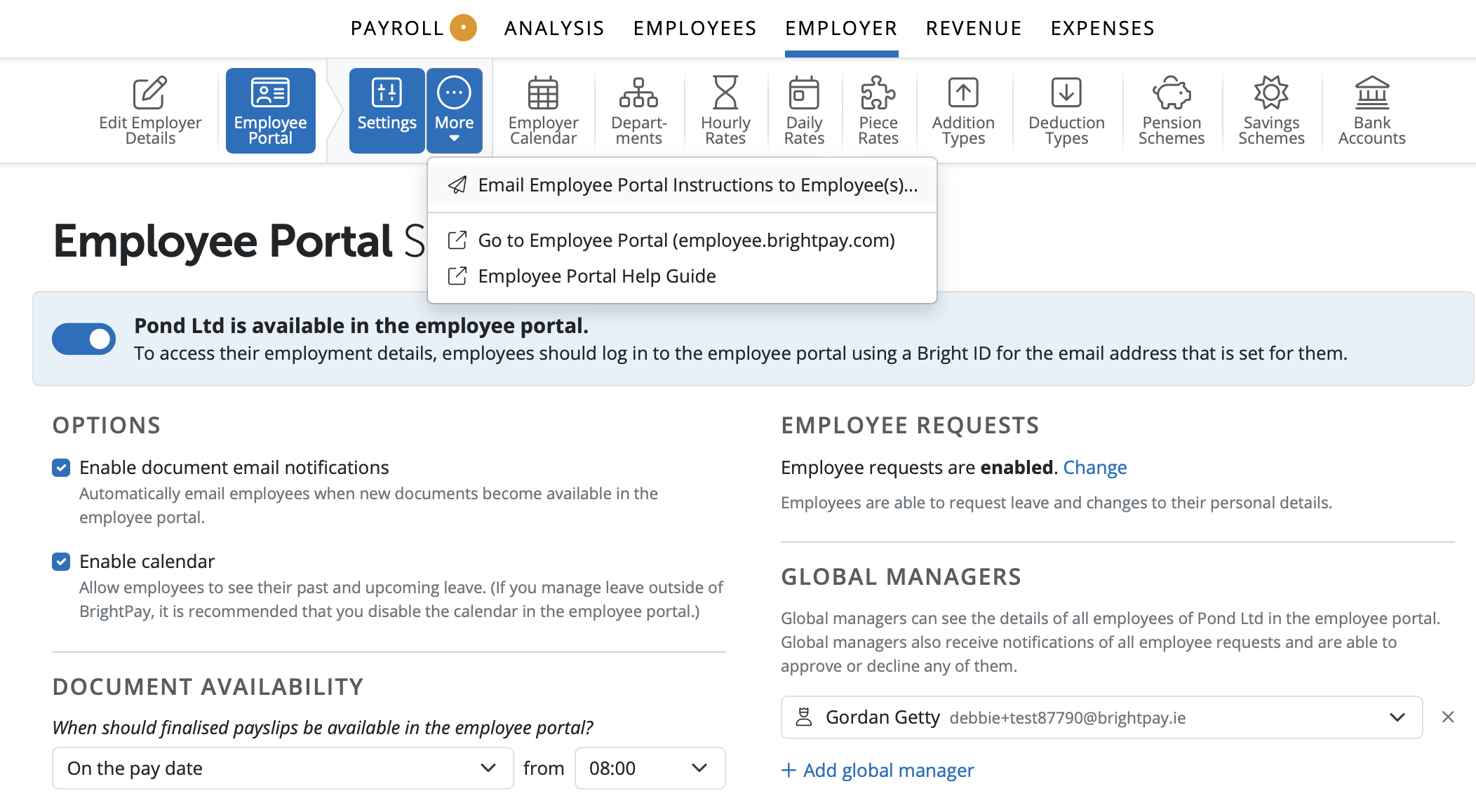
4) Select each employee you would like to send an email to, containing an overview of Self Service and instructions on how to log in. Leavers are excluded (deselected) by default from the recipient list.
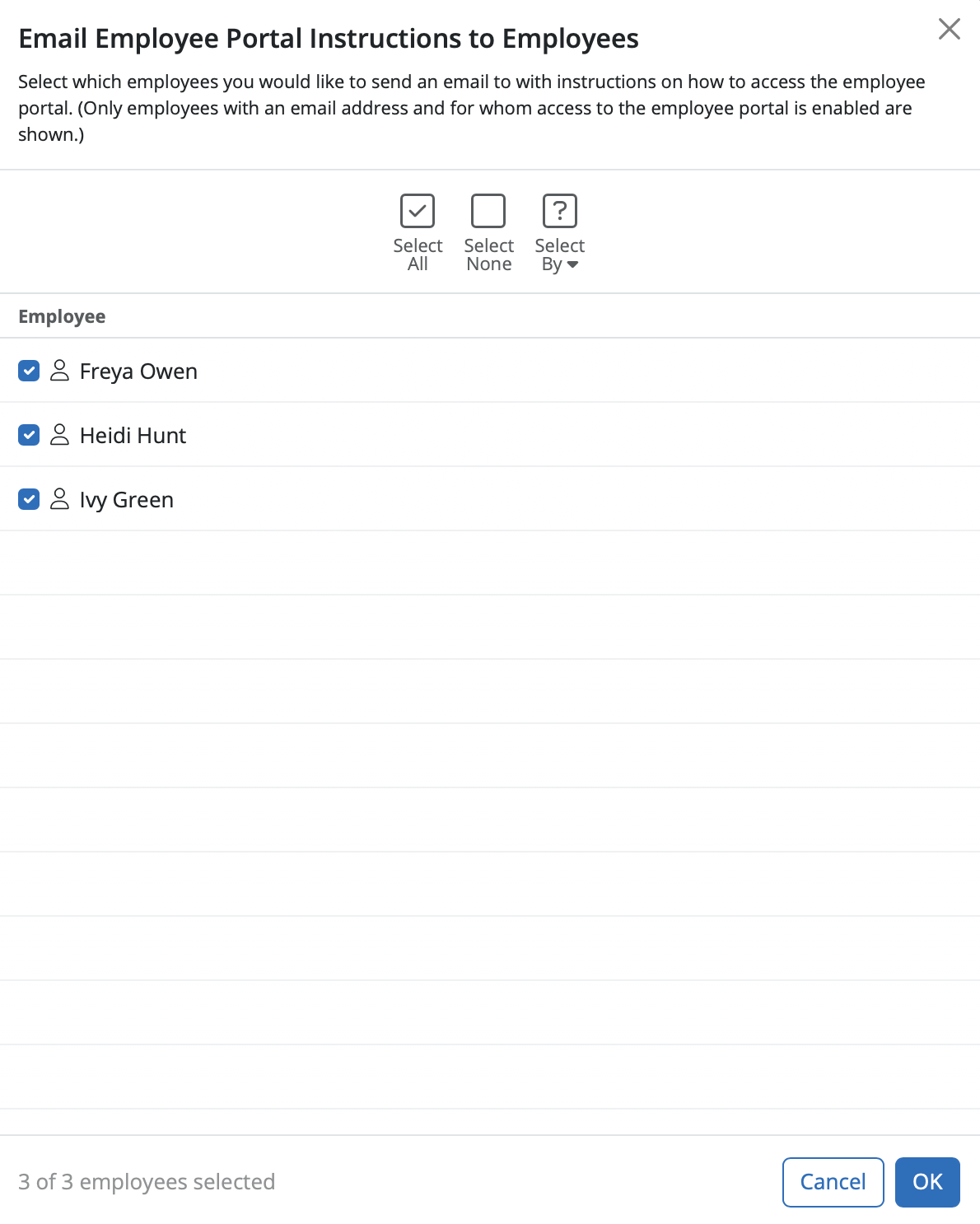
Please note: employees for whom self service has not been enabled or do not have a valid email address within their employee record, will not be available for selection.
5) Once all employees are selected, when ready and click 'OK'.
All employees selected will be sent a welcome email containing instructions on how they can log in to their own self service portal.
Once you have sent an email - you will see a "Last Emailed" date appear for each employee.
Employee portal invitations are sent from selfservice@brightpay.ie - if an employee is not receiving the email invitation, please ask them to whitelist this email address or add as safe sender.
If an employee wants to change their email address, you will need to update it in BrightPay within their employee record.
They will need to set up a BrightID again with the new email address. Once you have amended the email address in BrightPay, you can invite them to the portal again by going to Employer > Employee Portal > Settings > More > Email employee portal instructions to employees.
Send employee invitations for the EESSP via the Client Portal
Employees can also be sent invitations and instructions to access the employee portal from the client portal, provided the correct permission is enabled.
To enable this, go to Payroll > Employer > Client Portal > Permissions and tick Enable employee portal management for all users.
This allows users to manage the employee portal settings and resources for Bins Bins And Bins in the client portal.
The EESSP is automatically enabled on BrightPay for an employer and the default availability date is set to 8am on the pay date. If you wish to manually email the employees their payslips, you will need to disable the employee portal in the Employer > Employee Portal section on BrightPay.
Comments
0 comments
Article is closed for comments.