
Managers
An employee can be assigned a Manager within an employer in BrightPay. The Manager will have permission to view the employees they are assigned to on the manager's portal and approve / decline employee requests for these employees.
There are two methods of assigning a Manager:
1. An individual employee can be assigned to an Manager.
a) To do this please go to > Employees > Select Employee > Edit Details > HR tab.
b) Select '+ Add Manager' under the 'Reporting to' heading on the left.
c) You can now assign a manager or multiple managers to this employee.
The Manager can be of of three types:
- Another employee in the same employer
- A member of the Organisation
- Someone outside of the Organisation that is neither an employee of the employer or a member of the organisation
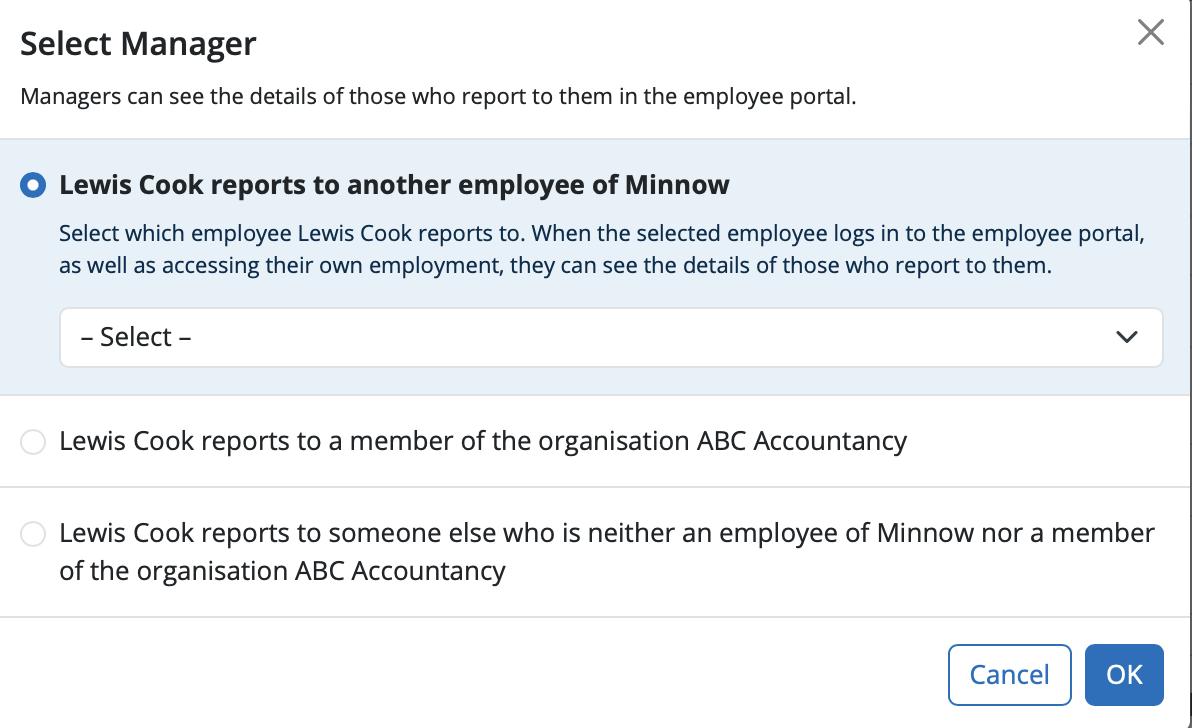
d) Select the Manager and click 'OK'
e) Select 'Save'
2. All employees in an employer can be assigned a 'Global Manager'
a) To do this please go to > Employer > Edit Employer Details > 'Employee Portal' tab.
b) Select '+ Global Manager' under the 'Global Managers' heading on the right.
c) You can now assign a manager or multiple managers to all employees in this employer.
The Manager can be of of three types:
- Another employee in the same employer
- A member of the Organisation
-
Someone outside of the Organisation that is neither en employee of the employer or a member of the organisation
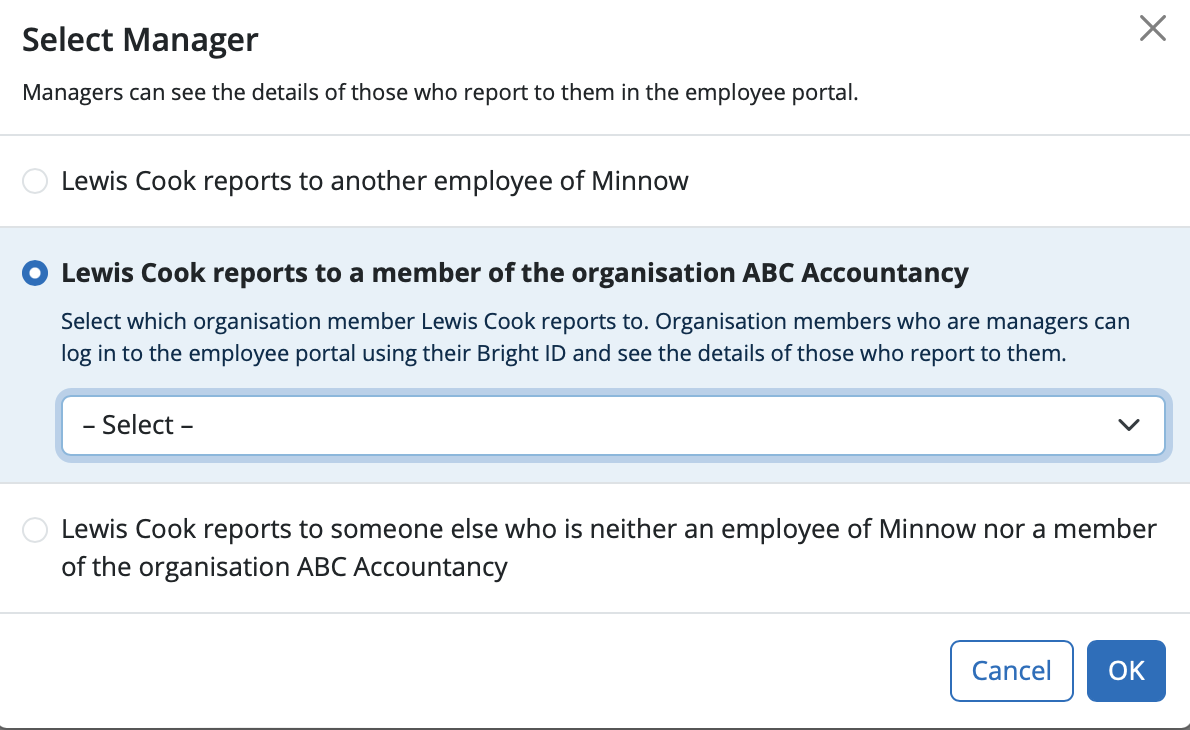
d) Select the Manager and click 'OK'
e) Select 'Save'
Managers can log in at employee.brightpay.com/manager
Comments
0 comments
Article is closed for comments.