
What is the Manager's Portal?
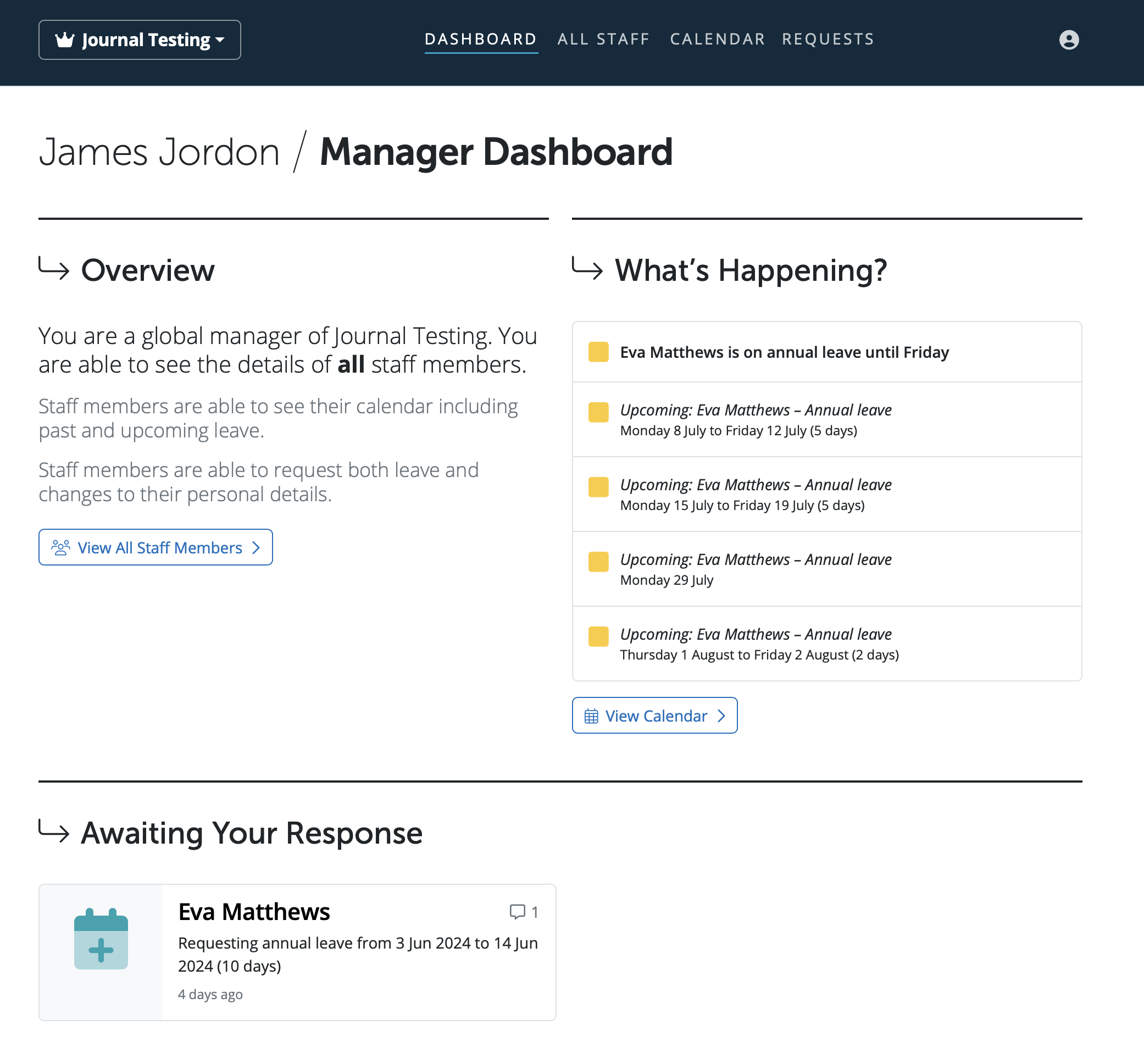
The Manager's Portal gives managers a dedicated view of the employees they are responsible for. From the portal, a manager can:
- View employees' personal details and annual leave entitlement
- View the employer calendar
- Add leave or cancel leave on behalf of employees
- Approve or decline employee requests (e.g. leave requests, personal detail changes)
Notifications for employee requests appear on the Manager's Portal dashboard. Approvals made here are reflected in BrightPay, the Employee Self Service Portal, and the Client Portal automatically.
Types of Manager
There are three manager types in BrightPay. Each is assigned differently within the employer and controls which employees the manager can see and act on.
Manager Type |
Who They See |
Where It's Set Up in BrightPay |
|---|---|---|
Global Manager |
All employees in the employer |
Employer > Edit Employer Details > Employee Portal tab |
Department Manager |
Employees in their assigned department(s) only |
Employer > Departments > select department > Add Department Manager |
Line Manager |
Specific employees assigned to them individually |
Employees > select employee > HR tab > Line Manager field |
A manager can be one of three types of person: another employee of the same employer, a member of the BrightPay organisation, or someone external (neither an employee nor an organisation member).
Multiple managers of the same type can be assigned. An employee can also have more than one manager type applied — for example, they might have both a Line Manager and a Department Manager.
Global Manager
A Global Manager has visibility of all employees within an employer. This is the broadest level of access and is suitable for an HR lead or senior manager who needs to oversee the whole workforce.
How to set up: Go to Employer > Edit Employer Details > Employee Portal tab > select + Global Manager under the Global Managers heading > choose the manager > click OK > Save.
Department Manager
A Department Manager can only see employees who belong to their assigned department(s). This is suitable for team leads or department heads who should only manage their own team.
How to set up: Go to Employer > Departments > select the department from the left-hand list > click + Add Department Manager under the Department Managers heading > select the manager > click OK.
Note: Departments must be created first before a Department Manager can be assigned. See Adding/Amending Departments here for guidance.
Line Manager
A Line Manager is assigned to specific individual employees rather than a whole department or the entire employer. This is the most granular level and is suitable for direct reporting structures.
Go to Employees > select the employee > HR tab > under Reporting, select Add Manager > make your selection > Save.
Accessing the Manager's Portal
Once assigned, the manager will receive an invitation email to register or log in with their Bright ID. The Manager's Portal is the same as the employees portal and is accessed at: employee.brightpay.com
Comments
0 comments
Article is closed for comments.