
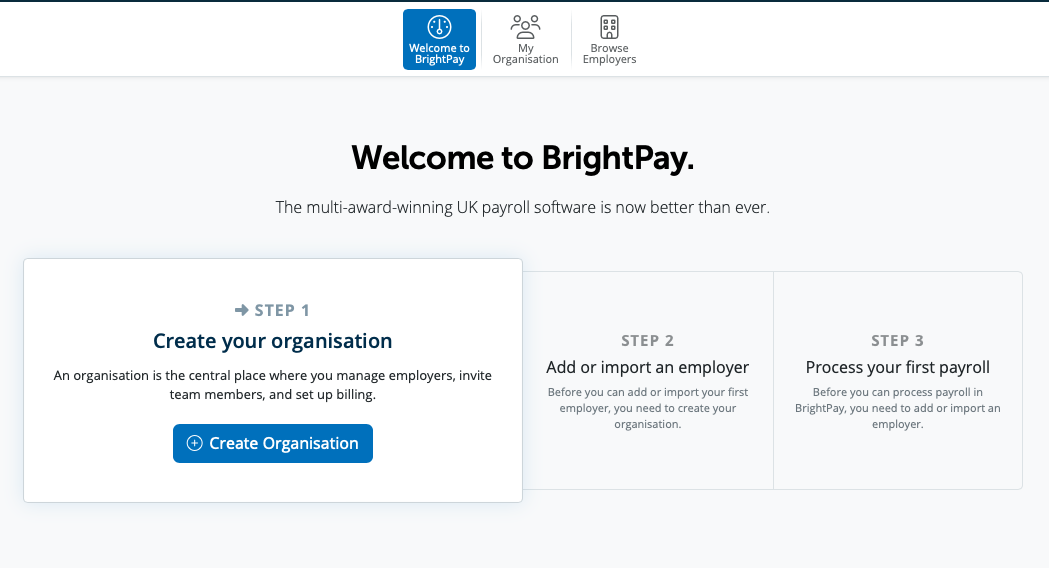
As a new user, when you log into BrightPay, on the Welcome to BrightPay you will have a step by step guide on how to set up your information.
Here is a video to view the 3 step process here.
Step 1 prompts you to create your Organisation.
For assistance on setting up your organisation please see here
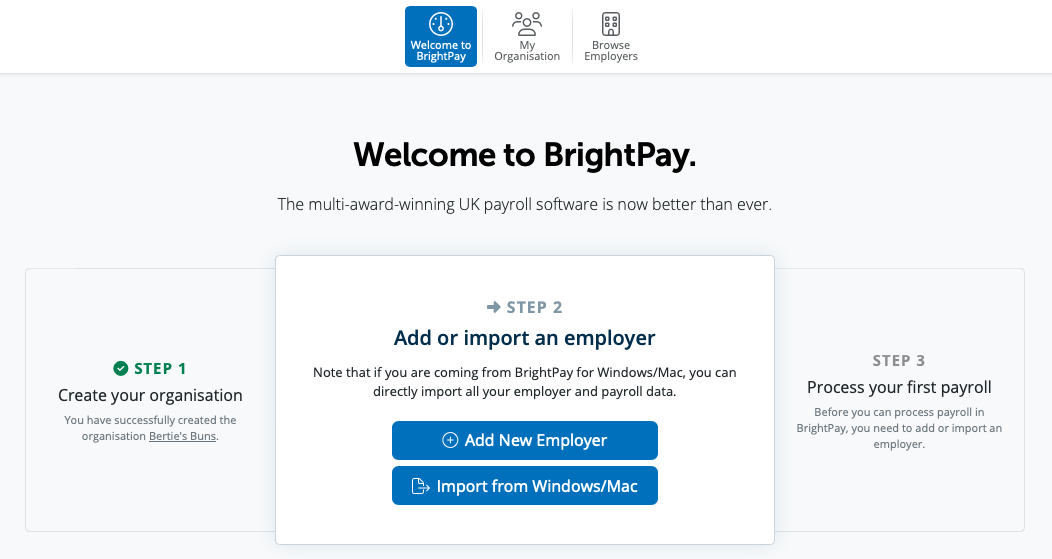
Step 2 prompts you to Add or Import an employer.
In order to create your new employer manually please select the Add New Employer option. If you are currently using BrightPay for Windows to import your employer data from BrightPay please select the option of Import from Windows and follow the steps.
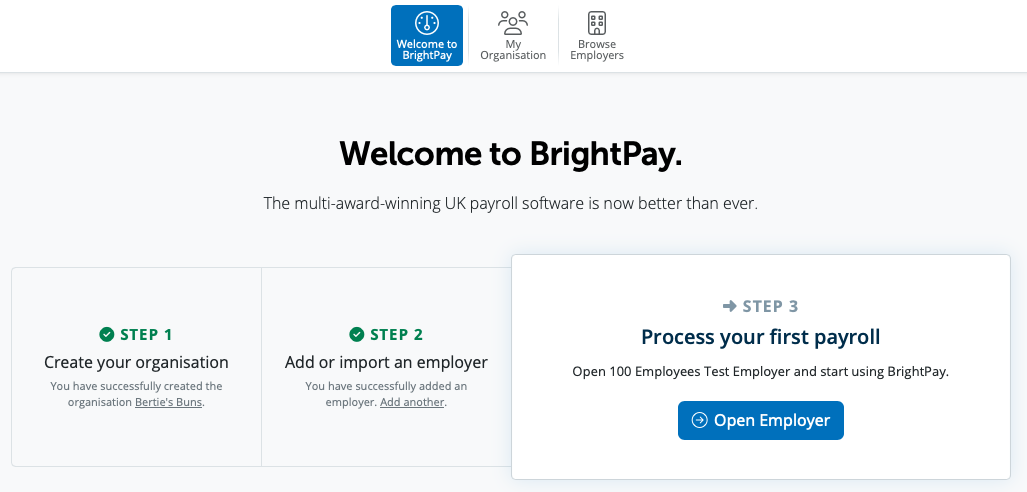
Step 3 Process your first payroll
Once you have your organisation set up and your employer file set up or imported, you are now ready to process your first payroll. Please select Open Employer in order to access your payroll data.
Note: If you have set up your organisation, employer and payment details and the employer is not showing when you log into BrightPay Cloud - try clearing the caches/cookies on your web browser. Then try to log into your payroll at https://ie-26.brightpay.com/ (for 2026 tax year). Click on 'Browse Employers' and it will take you to the employer dashboard screen.
Comments
0 comments
Article is closed for comments.