
The Resources utility allows users to upload, store and manage key employee and HR related documents securely in BrightPay.
It can be used for example to upload employee documents such as individual contracts of employment, handbooks, appraisal documents, company pension information, company newsletters and disciplinary correspondence. In addition, users may also like to use the document utility to store employee training certificates and qualification records.
All resources that are uploaded can be made available to one or more employees, as required, which employees can then access through their own self-service portal.
Adding a New Resource
1) Within the Employer tab, select 'Employee Portal' > Resources
2) Click the 'Add New Resource' button to add a new resource
3a) Under Details, enter the name of the resource you wish to upload and a description, if required
b) Select the Category you wish to place the resource under from the drop down menu and choose what Priority it is to have
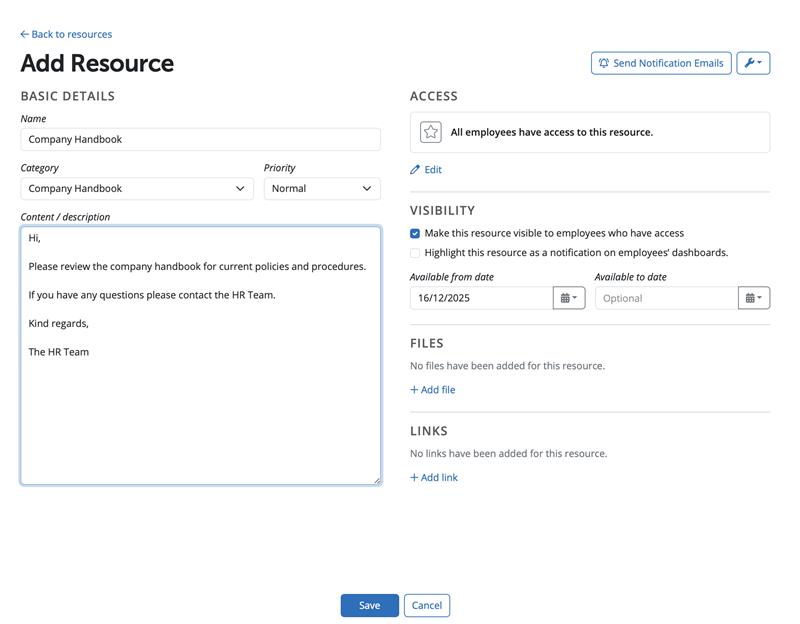
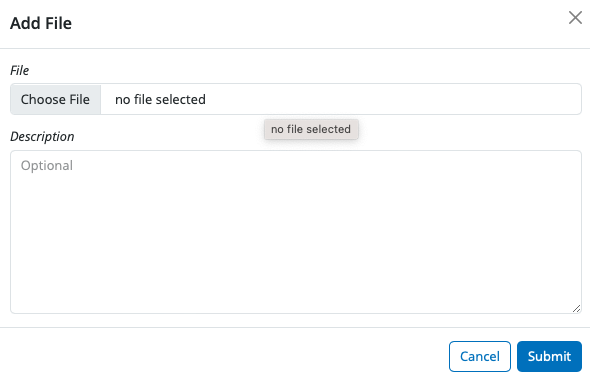
4a) Under Files, click on Add File and browse to the location of the document you wish to upload into BrightPay.
b) Select the file in question and click Submit to complete the upload
5a) Alternatively to upload a link (e.g. to a website) under Links, click Add Link.
b) Enter the Label you require and the associated URL. Click Submit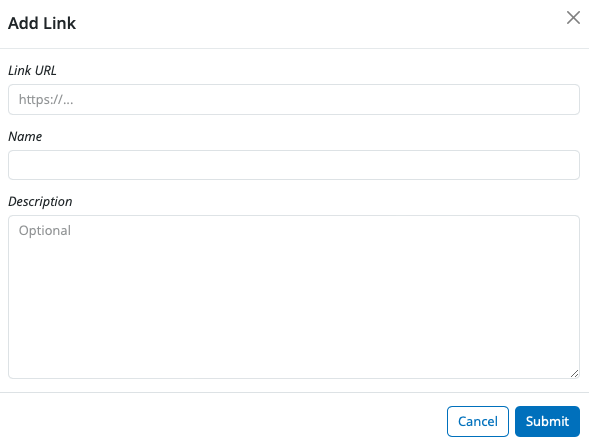
6a) Under Visibility, tick or untick to indicate whether you would like to make this resource visible to employees with access
b) If you wish to make the resource visible, enter the date you wish to make the resource visible from and how long you wish it to be visible for
c) Tick the field provided if you would like to notify the employee(s) of the document upload on their employee dashboard
d) You can also tick the option to "Highlight this resource as a notification on employees’ dashboards".
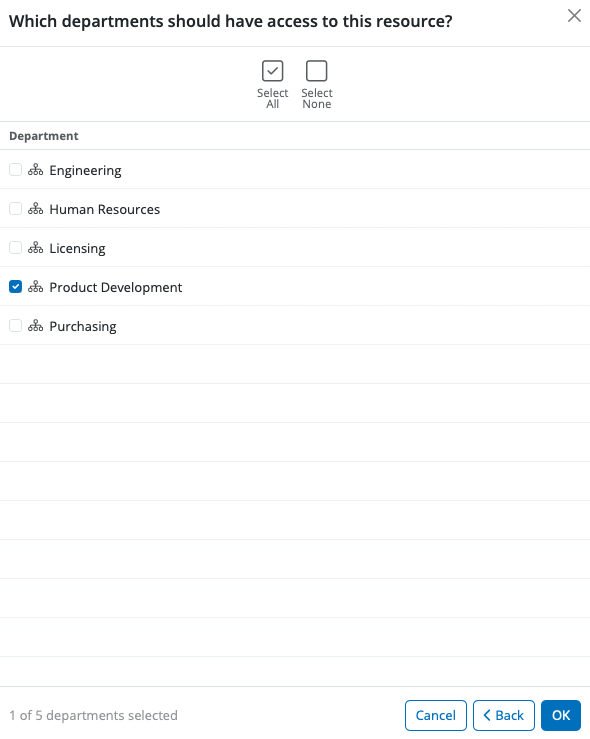
7a) Under Access, click Edit... to grant access to one or more employees.
b) Select the applicable option — All employees, Specific employee, Department, Custom access, or No access — for the resource.
Choose No access if you want this resource to be visible only to Client Portal users and not appear in any employee self‑service portal.
c) Click Edit again to grant access to a further employee or department.
8) When ready, click Save to save your settings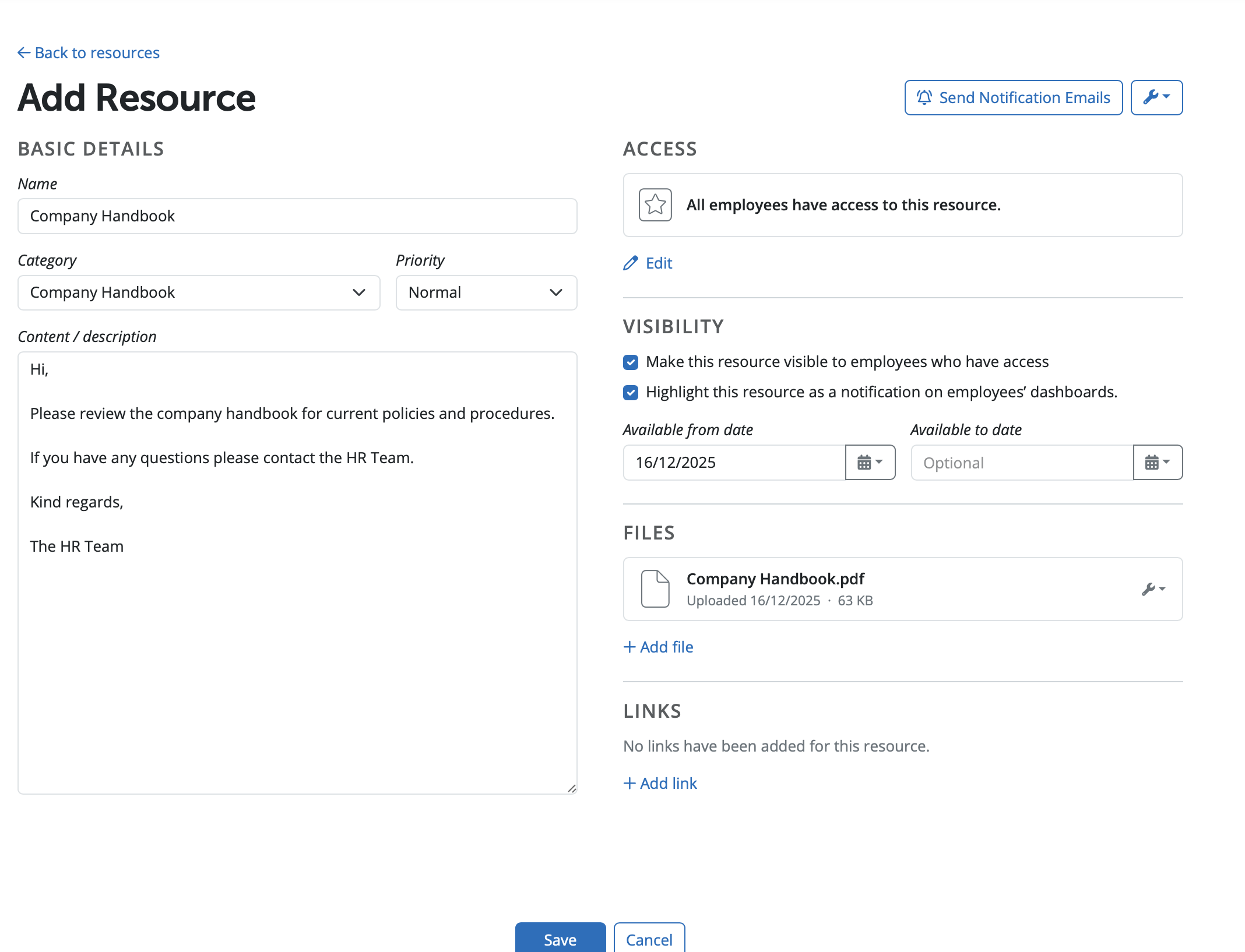
The resource will now be added to the Documents & Resources dashboard, where it can accessed again at any time.
Based on the Visibility and Access Rules that have also been set, the resource will be made available to employees within their self-service portal, if applicable.
Managing a Resource
To manage a resource, simply click on the resource on the Resources icon.
Editing a Resource
- To edit the resource, amend as required within the Edit Details screen and click Save Changes
Deleting a Resource
- To delete a resource, click 'delete resource' at the bottom of the Edit Details screen. Click Yes to delete the resource.

Note: There is no facility on BrightPay to email employees directly with a standard letter. You would need to add the letter as a resource and give access to the relevant employees on the Employee Portal.
Comments
0 comments
Article is closed for comments.