
A new Organisation
Once signed into BrightPay you will need to set up an Organisation. You can set this up under Welcome to BrightPay as Step 1 or under My Organisations.
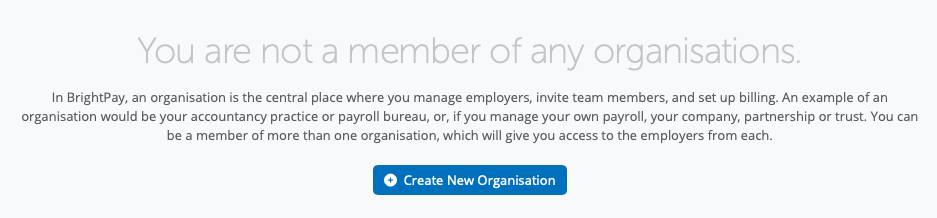
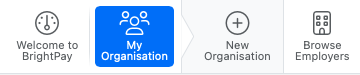
You can select the Create New Organisation or create an organisation under > My Organisation > New Organisation
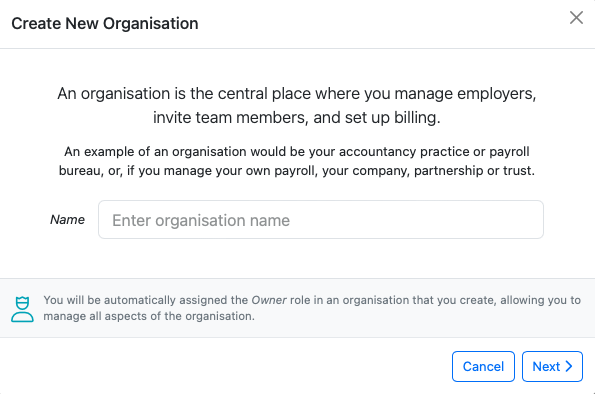
Enter in the name of your Organisation and Select 'Next'.
An Organisation is where employers, team members and billing are managed.
BrightPay is billed monthly at the end of each calendar month based on the total number of active employees across all of the organisation's employers in that month or you have the option of paying annually up front.
Please enter in the number of employers and number of employees in the Annual or Monthly option in order to set up your billing plan.
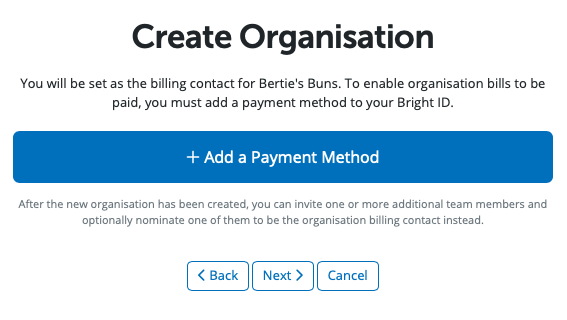
By default, the owner is set as the Billing Manager when they create the Organisation. This can be changed later if necessary.
You need to add your payment method. Once entered please select Next.
Once all the Organisation's details are entered when you select 'Create Organisation' the organisation will be created.
Details of the Organisation can be viewed under > My Organisation > Organisation Details
To delete an organisation from your Bright ID, log into BrightPay and go to 'My Organisations' section > click on the spanner icon on the right hand side of the screen > Delete Organisation.
Note: If you have set up your organisation, employer and payment details and the employer is not showing when you log into BrightPay Cloud - try clearing the caches/cookies on your web browser. Then try to log into your payroll at https://ie-26.brightpay.com/ (for 2026 tax year). Click on 'Browse Employers' and it will take you to the employer dashboard screen.
Important - If you believe you’ve accidentally deleted your Organisation or an Employer, please contact our Support team as soon as possible. Acting quickly gives us the best chance of recovering it for you.
Please note that if too much time has passed, we may not be able to restore the data, and in some cases recovery is not possible. Still, we recommend reaching out to Support promptly so a member of the team can review your situation and advise you on the options available.
Comments
0 comments
Article is closed for comments.