
In order to log into BrightPay, you will need a Bright ID.
Team Members will be asked for a 6-digit code at login (email by default)
-
Go to https://ie-26.brightpay.com/ or click here.
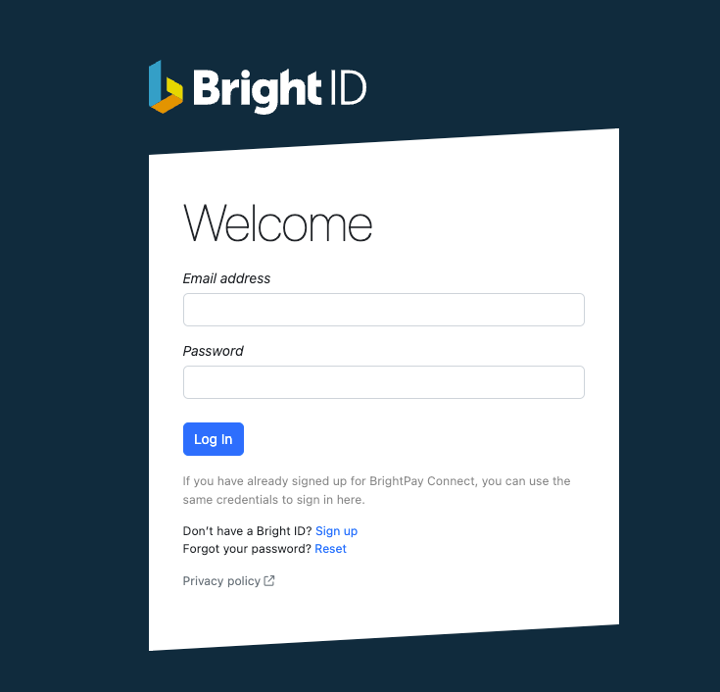
- Click ‘sign up’ to create your Bright ID
Please note, if you have already signed up for BrightPay Connect, you can use the same credentials to sign in here. If this is the case, please skip to step 3.
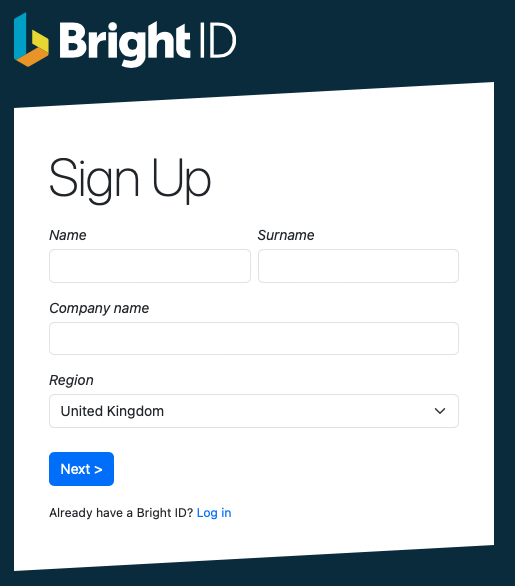
- Enter your full name, company name and region. Click ‘Next’.
- On the next screen enter your email address and create your password.
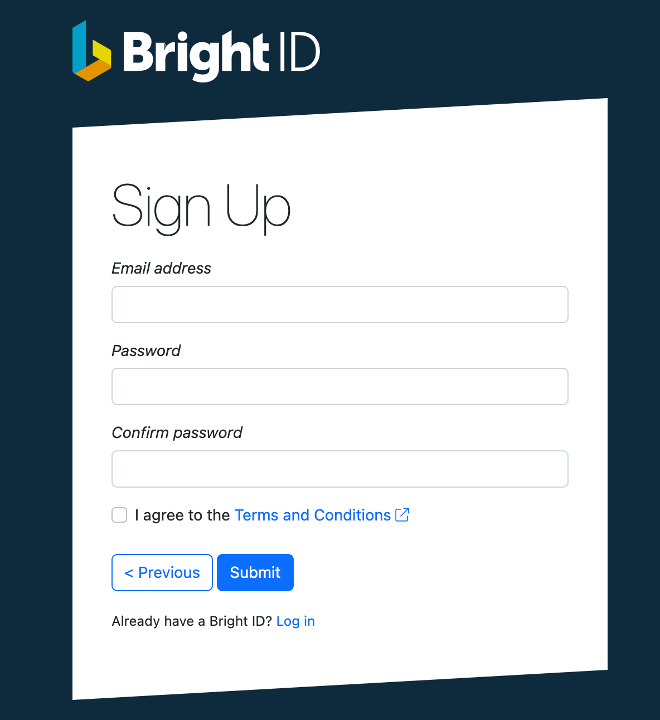
- Once you have read and agreed to the Terms and Conditions, click Submit. There is also an option at this point to go back if you’ve made any mistakes.
- Once these steps are complete you will receive an email where you will need to confirm your account. If you can’t locate your confirmation email, try checking your spam folder.
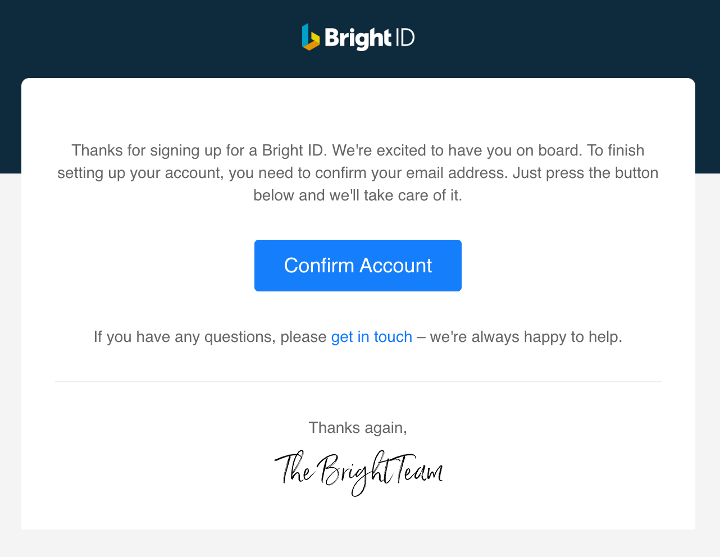
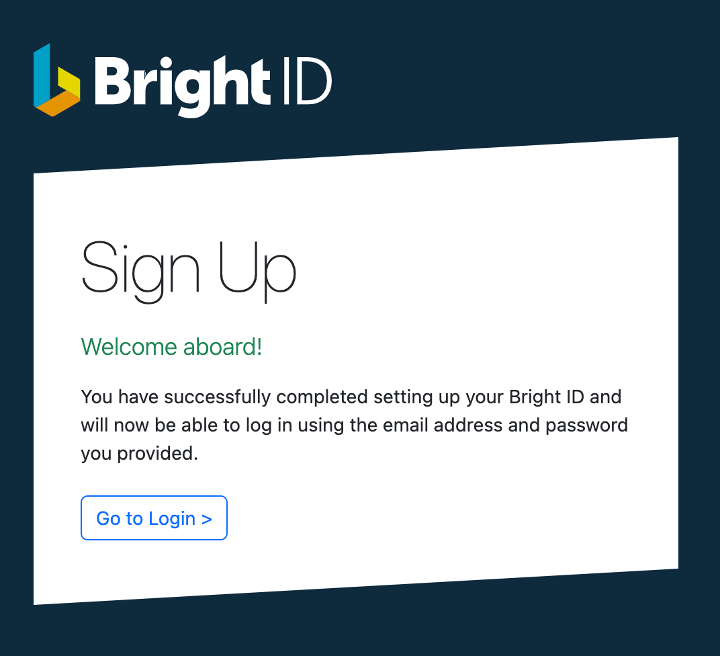
- After clicking ‘confirm account’, you will see confirmation that your Bright ID is successfully set up and you are now ready to login.
- Enter your full name, company name and region. Click ‘Next’.
- To login to your account, enter your email address and password.
Resetting a Password for Bright ID
To reset your Bright ID (the account you use to access BrightPay Cloud)
Just follow the password reset process:
1. Go to the BrightPay login page where you would normally enter your Bright ID credentials.
2. Click on the Reset button beside Forgot your password?
3. Enter the email address associated with your Bright ID account.
4. Check your email inbox (and your spam/junk folder) for a password reset email from BrightPay.
5. Click the link in the email to reset your password, and you’ll be prompted to enter a new password.
6. Once your password is reset, you can log in with your Bright ID and the new password.
If you do not receive the reset email, make sure you are checking the correct email account and look in your spam or junk folders. If you still have trouble, you may need to contact BrightPay support for further assistance.
Comments
0 comments
Article is closed for comments.