
Where BrightPay does not offer a direct import option from your previous software, or you wish to use an alternative method to set up your employer and employee details, BrightPay facilitates the setting up of employees using CSV file format.
To access this utility, go to Employees > Import & Export > Import/Update Employees from a CSV File.
1) Browse to the location of your Employee CSV File
2) Select the required file and click 'Open'
3) Your employee information will be displayed on screen. For each column, choose the employee data it represents. Ignore any columns and uncheck any rows you do not wish to be imported.
Note:
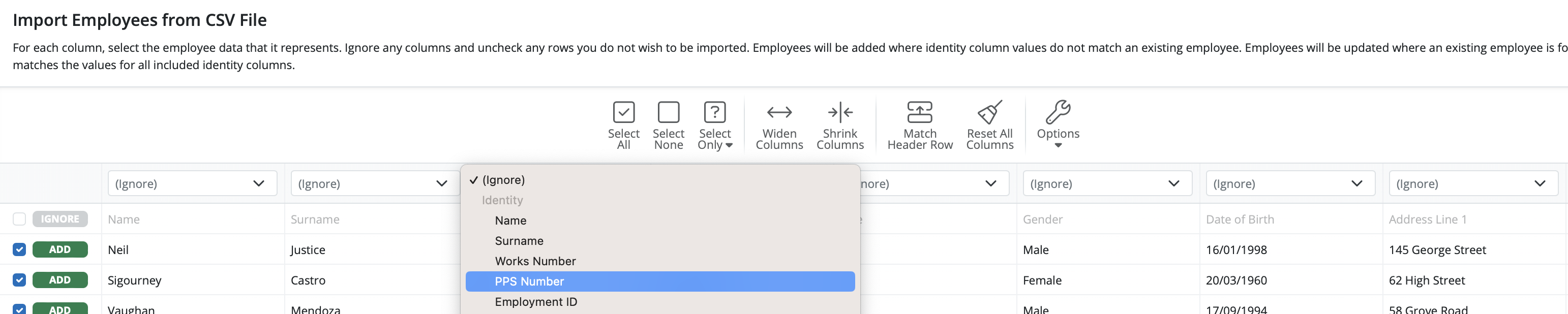
In order for BrightPay to match row data against existing employees, it will use the 'identity columns'. These 'identity columns' are:
- Name
- Surname
- Works Number
- PPS Number
At least one of the above columns must be selected by the user to trigger a match attempt. Rows will be deemed to match only if the values for all selected identity columns equal those for the employee. 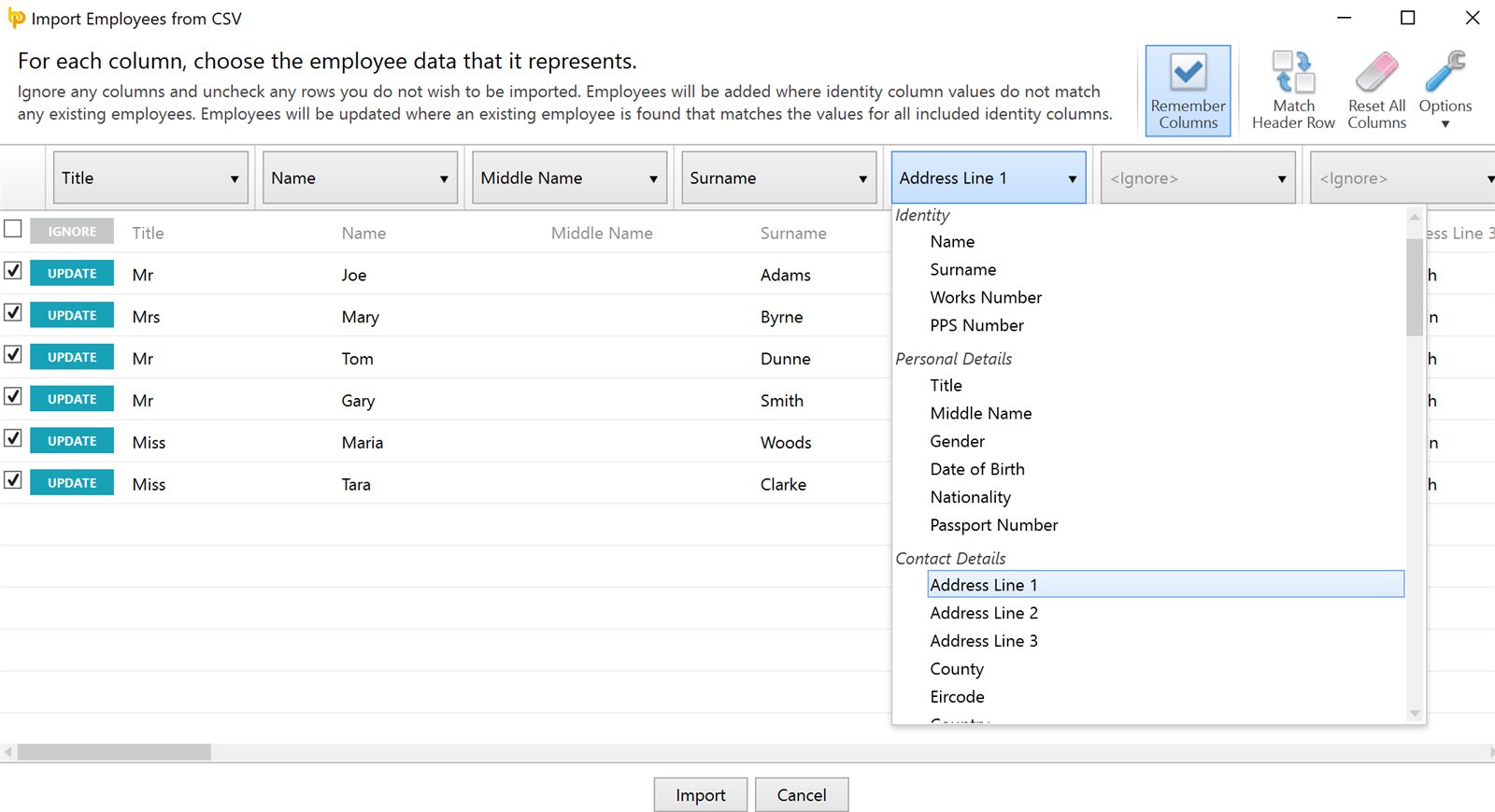
-
To assist with column selection, simply select 'Match Header Row'. BrightPay will try and match as many columns as it can for you
-
Should you have employee CSV files to import for more than one company e.g. you are moving a number of companies across from a previous software, simply instruct BrightPay to 'Remember Columns'. BrightPay will subsequently remember the column selection used in the previous import when next importing a new employee CSV file.
-
Should you wish to reset your column selection at any time, select 'Reset All Columns'.
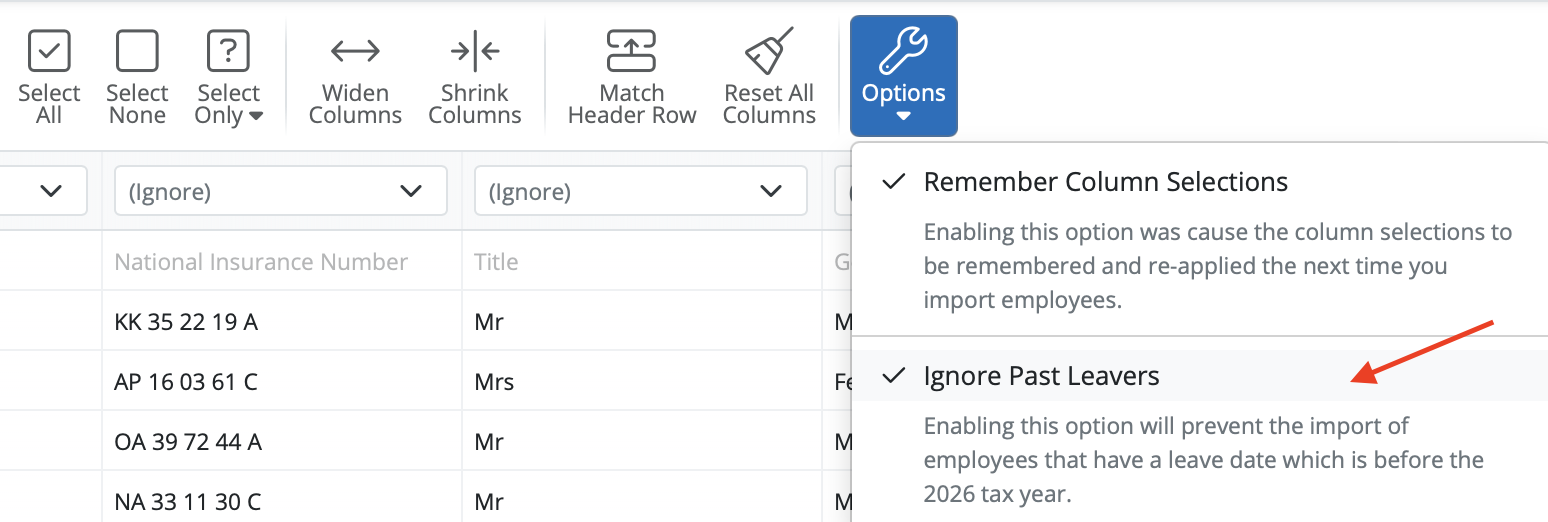
Should you not wish to import employees with a leave date in a previous year, select this within 'Options'
4) Click Import to complete the import of your employee information.
Employee data which can be imported in to update existing employee records are:
Personal Details:
Title
Middle Name
Gender
Date of Birth
Nationality
Passport Number
Contact Details:
Address Line 1
Address Line 2
Address Line 3
County
Eircode
Country
Email Address
Phone Number
Employment Details:
Employment ID
Department
Directorship
Calculation Basis
Has PAYE Exclusion Order
Has A1 Certificate
Annual Tax Credit
Annual Tax Cut-Off Point
Is Exempt from USC
Annual USC Cut-Off Point 1
Annual USC Cut-Off Point 2
Annual USC Cut-Off Point 3
PRSI Class
Is Exempt From PRSI
PRSI Exemption Reason
Total LPT to be Deducted
ASC Calculation Method
Is on EWSS
Shadow Payroll
Annual Leave Entitlement Calculation Method
Leave Year Start Date
Is Annual Leave Carried Over From Previous Year
Number of Annual Leave Days Carried Over From Previous Year
Number of Annual Leave Days in Year
Number of Annual Leave Days in Month
Number of Hours in Working Day
Is Monday a Typical Working Day
Is Tuesday a Typical Working Day
Is Wednesday a Typical Working Day
Is Thursday a Typical Working Day
Is Friday a Typical Working Day
Is Saturday a Typical Working Day
Is Sunday a Typical Working Day
Starter/Leaver:
Start Date
Previous Employment Taxable Pay
Previous Employment Tax
Previous Employment USC-able Pay
Previous Employment USC
Previous Employment ASC-able Pay
Previous Employment ASC
Leave Date
Is Deceased
Payment:
Payment Frequency
Annual Pay Rate
Period Pay Rate
Standard Daily Rate of Pay
Standard Hourly Rate of Pay
Payment Method
Payment Bank Name
Payment Bank Branch
Payment Bank Sort Code
Payment Bank Account Name
Payment Bank Account Number
Payment Bank Reference
Payment BIC
Payment IBAN
HR:
Job Title
Document Password
Next Review Date
Medical Information
Notes
Additional fields which can be imported if a MID-YEAR setup:
Mid Year Cumulative Notional Pay
Mid Year Cumulative Medical Insurance
Mid Year Cumulative Tax-able Pay
Mid Year Cumulative Tax
Mid Year Cumulative USC-able Pay
Mid Year Cumulative USC
Mid Year Cumulative ASC-able Pay
Mid Year Cumulative ASC
Mid Year Cumulative LPT
Mid Year Cumulative Employee PRSI-able Pay
Mid Year Cumulative Employee PRSI
Mid Year Cumulative Employer PRSI-able Pay
Mid Year Cumulative Employer PRSI
Mid Year PRSI Class 1
Mid Year Cumulative Insurable Weeks at PRSI Class 1
Mid Year PRSI Class 2
Mid Year Cumulative Insurable Weeks at PRSI Class 2
Mid Year PRSI Class 3
Mid Year Cumulative Insurable Weeks at PRSI Class 3
Mid Year PRSI Class 4
Mid Year Cumulative Insurable Weeks at PRSI Class 4
Mid Year Pension Scheme Type
Mid Year Cumulative Employee Pension
Mid Year Cumulative Employer Pension
A CSV file template for the above can be accessed here .
Note: All employees will be placed on emergency tax until they are updated by a Revenue Payroll Notification (RPN).
Therefore, when setting up an employee record for the first time this will be brought to your attention when you access the employee's Revenue Details utility.
The Revenue Payroll Notification is to be used by employers to ensure the most up to date Revenue information is being applied to their employees' pay. It will provide employers with the necessary information to deduct the correct income tax, Universal Social Charge (USC) and Local Property Tax (LPT) from each employee every pay period.
Comments
0 comments
Article is closed for comments.