
BrightPay offers a range of reports to assist with your reporting needs - for example Revenue compliance checks.
These reports help you verify payroll calculations, statutory deductions, and submissions in line with Irish Revenue requirements.
Key Reports for Revenue Compliance in BrightPay
- Payroll Summary: Show gross pay, PAYE, USC, PRSI, BIK, and net pay for each employee and pay period, supporting cross-checks against Revenue submissions.
- Notional Pay - Benefit-in-Kind (BIK) : Display BIK amounts and types per employee, ensuring correct treatment of taxable benefits.
-Payroll Submission Request: Lists each Employees Pay, deductions, and employee changes e.g. leave dates.
- Tax Deduction Card (TDC): Summarises all payments and deductions for individual employees, useful for audit trails.
- DSP Payments: Track employees who have received Maternity, Paternity, Adoption Payments.
- Revenue – Finalised Totals : Display total liabilities owed to Revenue for each tax week and tax month. You can also view the return totals recorded by Revenue and compare them with your finalised and submitted PSRs in BrightPay; any discrepancies found will be clearly highlighted.
- Custom Analysis Reports: Enable you to build tailored reports using any payroll data field, filtered by date, department, and more.
To access the Reporting function, click Analysis.
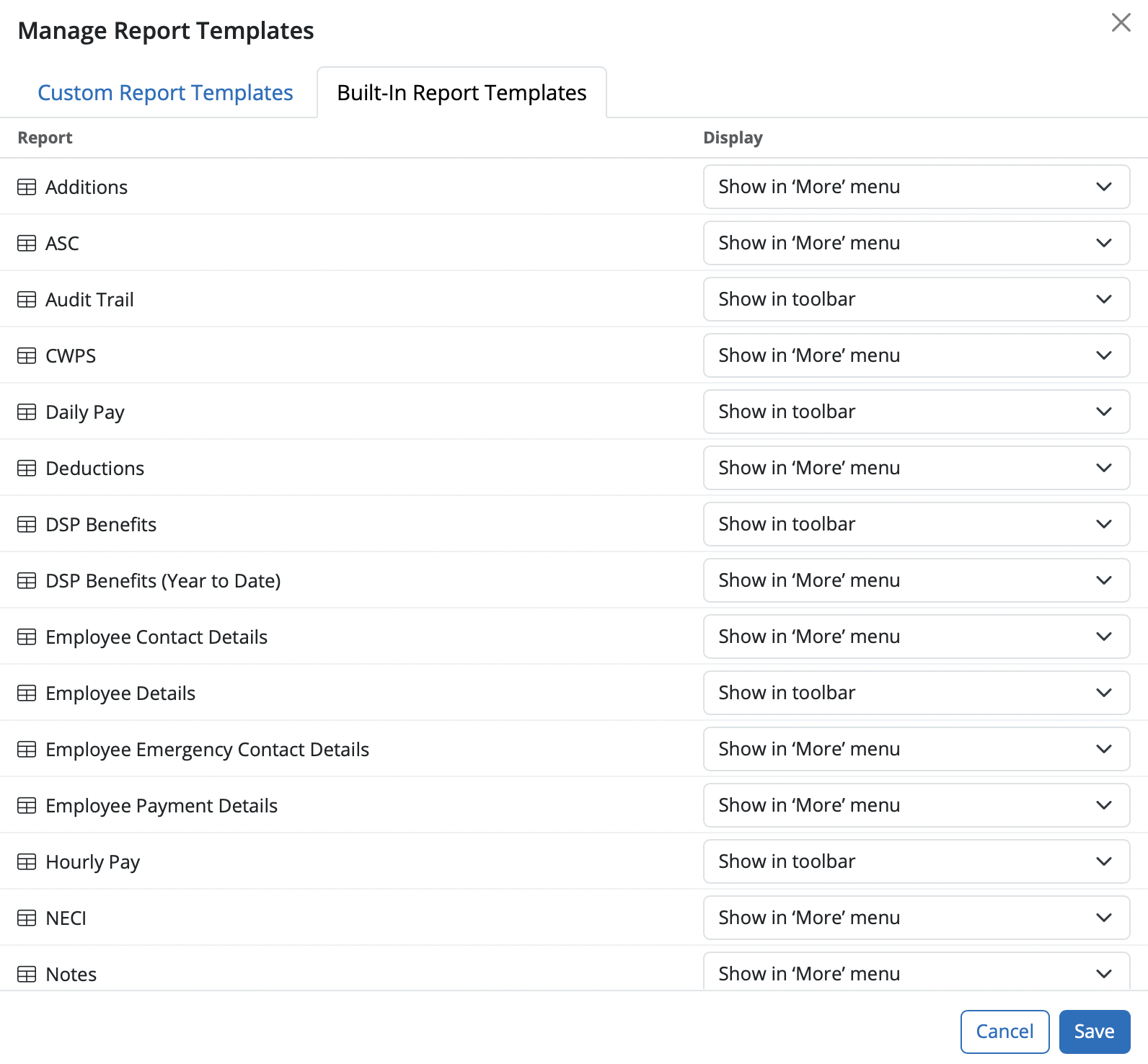
A number of pre-set reports have already been set up for your use and can be found within the Analysis section in the menu toolbar. Some of the saved reports display in the toolbar while others can be found by selecting 'More'.

These saved reports represent the most common payroll reports generally used. The default reports that appear in the toolbar consist of:
- Audit Trail
- Daily Pay
- DSP Benefits
- Employee Details
- Hourly Pay
- Notional Pay
- Payroll Summary
- Pensions
- Year to Date
The saved reports available under 'More' consist of:
- Additions
- ASC
- CWPS
- Deductions
- DSP Benefits (Year to Date)
- Employee Contact Details
- Employee Emergency Contact Details
- Employee Payment Details
- NECI
- Notes
- Pensions (Year to Date)
Manage Reports
In this utility you can manage the saved reports under each heading for Built-In Report Templates or Custom Report Templates, i.e. you can indicate that a report should show in the menu toolbar, remove a report from the toolbar and delete reports.
Note: If the period that you want to run a report on is not showing, check that the payslips have been finalised for that period. The reports in the Analysis section will only appear when payslips have been finalised.
If elements that are visible on the payslip are not pulling through to the reports, ie a certain addition type - ensure that the addition type has been set up as an Employer Addition type before it is added to the payslip. Also ensure that no extra description or characters have been added to the payslip - unless the description matches the Employer Addition type exactly; it will not pull the amounts through to the report.
Report templates that exist at the time of moving to a new tax year will carry across automatically. However, if a report template was created after the tax year was set up, it cannot be copied across to a different tax year — there is no facility to import individual report templates between tax years.
Comments
0 comments
Article is closed for comments.