
BrightPay Cloud facilitates a direct import of employer and employee details from Thesaurus Payroll Manager at the start of the tax year by creating an employer backup file in Thesaurus Payroll Manager and importing the file.
To migrate to BrightPay Cloud at the start of the tax year:
-
Sign up for BrightPay Cloud IE using this link. Please use your BrightID log in details if you have one. You will already have a BrightID if you have already purchased BrightPay, or used BrightPay Connect or other Bright products.
If you don’t have a Bright ID, click Sign up for a Bright ID and follow the steps.
- Once logged in, you will be asked to create your organisation. Here, you need to enter your organisation name and address, choose your payment plan, and add a payment method. Click here for more information.
Creating the Employer Backup File in Thesaurus Payroll Manager:
-
To create an employer backup file in Thesaurus Payroll, open the employer in Thesaurus Payroll Manager by selecting > File > Open Company > Select the employer > Open > Enter in the employer password.
You can create an employer backup file of your 2025 data once your payroll is completed for the tax year 2025 or of the employer file in Thesaurus Payroll Manager 2025 before any payroll is processed for the tax year 2026. - An employer backup file of the employer currently opened in Thesaurus Payroll Manager can be created by going to > File > Backup Data Files.
-
Choose a location on your computer to save the backup or an external directory.
The company you are updating will automatically be highlighted.
Select the location to backup payroll files to e.g., local drive, memory stick, network drive, etc
Click 'Backup'.
Click 'OK'.
The name of the employer backup file will be called 'name of employer payroll backup file 25.zip' or 'name of employer payroll backup file 25.zip'
Note the location your employer backup file is saved to, as you will need to locate this employer backup file when you import this into BrightPay.
Importing the Employer backup file into BrightPay:
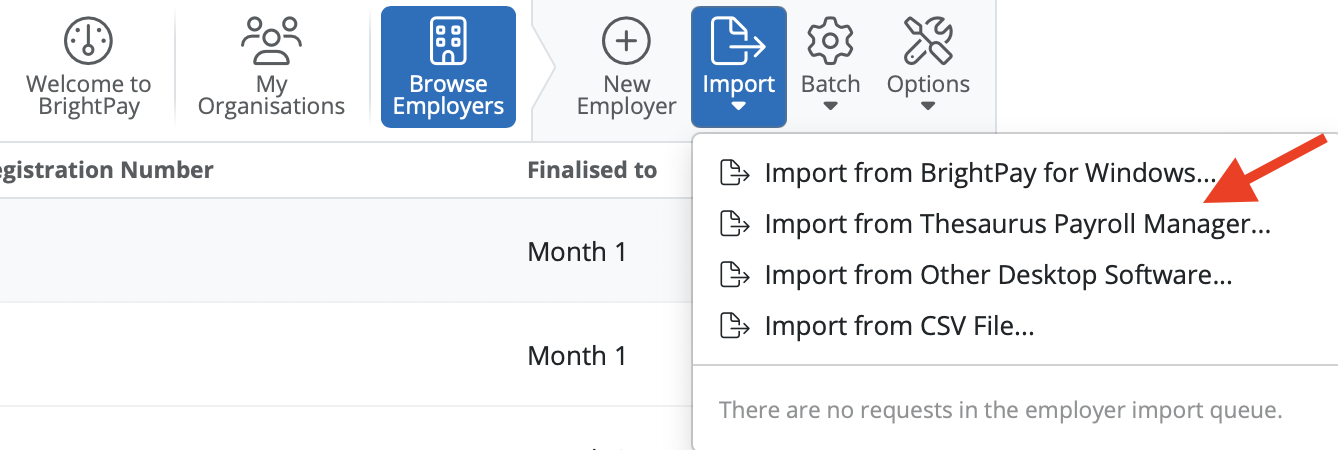
- The facility to import an employer backup file from Thesaurus Payroll Manager into BrightPay Cloud at the start of the tax year is available under the Browse Employers icon.
- In order to import into BrightPay from a Thesaurus Payroll Manager payroll backup file, you will need to select the option of Import > Import from Thesaurus Payroll Manager.
-
Every employer imported or created in your account needs to be added to an organisation. Select the organisation you wish to import your employer file into.
If you wish, you can mark an employer as available to admin members of the organisation only. This means that only the owner and administrator members of the Organisation will be able to see this employer when they access BrightPay.
Select Next.
- To import the employer, please click Select data file(s) to upload.
Please note, you can import up to 10 employer files in the same batch.
-
Then browse to where your backup file was saved. The file will be called 'name of employer payroll backup file 25.zip'. Please select the backup file you wish to import and select Open.
The employer file will start to import into BrightPay. This should take about 30 seconds. The employer file will be highlighted in green once the employer is imported successfully. Press Close.
The employer details will be displayed on the employer homescreen now. You can click into the company to commence checking details that have been imported.
- Before payroll can be processed within the Payroll utility, you must first set up the payroll schedules you require. For more information, click here
What information/data comes across from Thesaurus Payroll Manager to BrightPay Cloud?
When transferring payroll data from Thesurus Payroll Manager to BrightPay Cloud, the import includes the data:
- Employer Details:
- Employees Details
Employee details can be viewed by navigating to the Employees menu in BrightPay Cloud and selecting an employee from the list on the left-hand side.
The import includes data such as:
- Personal details
- Employment and PAYE details
- Pay elements - hourly rates, salaries
- Pension scheme details
- Bank accounts
- Departmens
- CSO details
Some employee information cannot be imported from Thesaurus Payroll Manager and should be reviewed and completed in BrightPay Cloud where necessary.
- County
- Country
- Annual Leave Settings
- Working Day Pattern
- Calendar information
- Gender is not a required field in Thesaurus Payroll Manager. If an employee's gender is unspecified in the source data, it is imported into BrightPay Cloud as Male. This should be reviewed and updated where necessary.
- Employees Benefit in Kind (and BrightExpenses reporting status where applicable)
Please check our additional notes on Benefit in Kind available at the following page:
- CWPS Pension
Please check our additional notes on CWPS Pension available at the following page:
- Share Based Remuneration
Please check our additional notes on Share Based Remuneration available at the following page:
What information doesn't come across from Thesaurus Payroll Manager to BrightPay Cloud:
- Revenue Digital Certificate
Each user on the Organisation will need to re-add the Revenue Digital Certificate to BrightPay Cloud. For more information, click here:
https://payrollsupport.ie.brightsg.com/hc/en-gb/sections/37023577761809-Digital-Certificates
- Annual Leave settings
- Calendar Data
- Working Day Patterns
This can be configured from Employees tab > Employment.
- Journal Mappings
https://payrollsupport.ie.brightsg.com/hc/en-gb/articles/37809246599057-Payroll-Journals-Overview
Migration Checklist
The Migration Checklist may assist you with the migration process and setup, click here.
What’s the difference between BrightPay Desktop, BrightPay Connect and BrightPay’s Cloud software?
Click here to view a full feature comparison.
Do you use Thesaurus Connect?
If you use Thesaurus Connect and move your employer to BrightPay Cloud, please note that Thesaurus Connect and BrightPay Cloud are two separate products. Thesaurus Connect is designed to work with Thesaurus Payroll Manager only.
The Employee Self Service Portal, Manager Portal, and Client Portal are included as standard features with BrightPay Cloud, click here.
The Employee Self Service Portal Overview, click here.
The Manager Portal Overview, click here.
The Client Portal Overview, click here.
The Employee Self Service Portal is enabled by default in BrightPay Cloud. We recommend reviewing the Settings in the Employer tab> Employee Portal.
If you don’t wish to use the Employee Self Service Portal, you can disable it. For more details, click here.
It is also recommended that all employee details are reviewed before processing any payroll to ensure information imported in is correct and applicable for the tax year in question.
You are now ready to commence processing payroll within BrightPay.
Need more help with your migration? Email brightmove@brightsg.com
Comments
0 comments
Article is closed for comments.