
This guidance is specifically designed to help users migrating from Thesaurus Payroll Manager to BrightPay Cloud mid-tax year.
If you have already started to process your payroll in Thesaurus Payroll Manager 2026, you can switch over to BrightPay 2026 at any stage during 2026.
BrightPay Cloud facilitates a direct import of employer and employee details from Thesaurus Payroll Manager by creating an employer backup file in Thesaurus Payroll Manager and importing the file.
To migrate to BrightPay Cloud mid-tax year:
-
Sign up for BrightPay Cloud IE using this link . Please use your BrightID log in details if you have one. You will already have a BrightID if you have already purchased BrightPay, or used BrightPay Connect or other Bright products.
If you don’t have a Bright ID, click Sign up for a Bright ID and follow the steps.
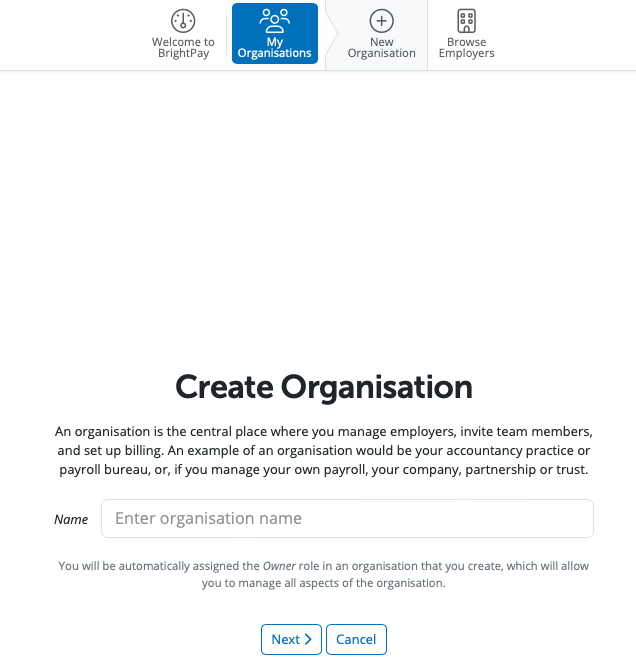
- Once logged in, you will be asked to create your organisation. Here, you need to enter your organisation name and address, choose your payment plan and add a payment method, click here for more information.
Creating the Employer Backup File in Thesaurus Payroll Manager:
-
To create an employer backup file in Thesaurus Payroll open the employer in Thesaurus Payroll Manager by selecting > File > Open Company > Select the employer > Open > Enter in the employer password.
- An employer backup file of the employer currently opened in Thesaurus Payroll Manager can be created by going to > File > Backup Data Files.
-
- Choose a location on your computer to save the backup or external directory
The company you are updating will automatically be highlighted.
Select the location to backup payroll files to e.g. local drive, memory stick, network drive, etc
Click 'Backup'.
Click 'OK'.
The name of the employer backup file will be called 'name of employer payroll backup file 26.zip' or 'name of employer payroll backup file 26.zip'
Note the location your employer backup file is saved to as you will need to locate this employer backup file when you import this into BrightPay Cloud.
Importing the Employer backup file into BrightPay:
-
The facility to import an employer backup file from Thesaurus Payroll Manager into BrightPay Cloud is available under the Browse Employers icon.
-
In order to import into BrightPay from a Thesaurus Payroll Manager payroll backup file, you will need to select the option Import > Import from Thesaurus Payroll Manager.
-
Review the following settings, such as selecting the organisation you wish to import the employer into.
If you wish, you can mark an employer as available to admin members of the organisation only. This means that only the owner and administrator members of the Organisation will be able to see this employer when they access BrightPay.
Select Next.
-
In order to import the employer, click Select data file(s) to upload.
-
Please note, you can import up to 10 employer files in the same batch.
- Browse to the file location where the backup was saved. The file will be called 'name of employer payroll backup file 26.zip'. Please select the backup file you wish to import and select Open.
-
-
The import will then start. This should take about 30 seconds. Once it's been completed, it will be highlighted in green, and you can press Close:
-
The employer details will now be visible on the Browse Employers menu. You can click into the company to commence checking details that have been imported.
-
When you navigate to the Payroll menu, we see that any periods that have already been processed within Thesaurus Payroll Manager within this tax year are still visible and can be accessed (boxes with blue ticks). The payroll will continue on from the next pay period due to be processed (box with Employee head icon):
In this example, the company in question that was imported ran a Weekly payroll, but any pay frequencies present within your company will have been imported (e.g. Monthly, Fortnightly).
-
PLEASE NOTE - We recommend ensuring that all pay periods are fully updated and correct within Thesaurus Payroll Manager prior to importing into BrightPay Cloud.
It is not possible to perform corrections on already finalised pay periods within BrightPay Cloud after migrating from Thesaurus Payroll Manager.
What information/data comes across from Thesaurus Payroll Manager to BrightPay Cloud?
When transferring payroll data from Thesurus Payroll Manager to BrightPay Cloud, the import includes historical payroll data for the current tax year. Here’s what’s imported:
- Employer Details:
- Employees Details
Employee details can be viewed by navigating to the Employees menu in BrightPay Cloud and selecting an employee from the list on the left-hand side.
The import includes the data such as:
- Personal details
- Employment and PAYE details
- Pay items - hourly rates, salaries, additions, deductions
- Pension details
- Departments
- My Future Fund details
- Payment method -bank accounts
- CSO details
- Mid year totals if applicable
Some employee information cannot be imported from Thesaurus Payroll Manager and should be reviewed and completed in BrightPay Cloud where necessary.
- County
- Country
- Annual Leave Settings
- Working Day Pattern
- Calendar information
- Gender is not a required field in Thesaurus Payroll Manager. If an employee's gender is unspecified in the source data, it is imported into BrightPay Cloud as Male. This should be reviewed and updated where necessary.
- Pay Items
Pay items, including standard and additional hourly rates, salaries, additions and deductions import from Thesaurus Payroll Manager to BrightPay.
However, you should review the imported pay items and, where necessary, set up any additional rates, additions/deduction types etc in the Employer or Employees >Payment menu for reporting purposes.
Addition types
Deduction types
Hourly rates
https://payrollsupport.ie.brightsg.com/hc/en-gb/articles/38544326364305-Adding-Amending-Hourly-Rates
- Employee Benefit in Kind (and BrightExpenses reporting status where applicable)
Please check our additional notes on Benefit in Kind available at the following page:
- CWPS Pension
Please check our additional notes on CWPS Pension available at the following page:
- Share Based Remuneration
Please check our additional notes on Share Based Remuneration available at the following page:
- Full Revenue Payroll Notification (RPN) history
Full history of payslips from current tax year and all payslip items, as well as the current open payslip.
- Full Payroll Submission Request (PSR) history
- Revenue Payments history
This is accessible from the Revenue menu within BrightPay.
- Employer Bank Accounts
What information doesn't come across from Thesaurus Payroll Manager to BrightPay Cloud:
- Revenue Digital Certificate
Each user on the Organisation will need to re-add the Revenue Digital Certificate to BrightPay Cloud. For more information click here:
https://payrollsupport.ie.brightsg.com/hc/en-gb/sections/37023577761809-Digital-Certificates
- Annual Leave settings
- Calendar Data
- Working Day Patterns
This can be configured from Employees tab > Employment.
-
Full Auto-Enrolment Pension Notification (AEPN) history
-
Auto-Enrolment Contribution Submission (AECS) history
- Journal Mappings
https://payrollsupport.ie.brightsg.com/hc/en-gb/articles/37809246599057-Payroll-Journals-Overview
Inviting Team Members
You may need to invite additional team members into your Organisation. To do this, navigate to the Team Members tab under My Organisation and select the Invite New Member(s) button. For more details click here
Migration Checklist
The Migration Checklist may assist you with the migration process and setup, click here.
What is the difference between Thesaurus Payroll Manager and BrightPay Cloud software?
Click here to view a full feature comparison.
Do you use Thesaurus Connect?
If you use Thesaurus Connect and move your employer to BrightPay Cloud, please note that Thesaurus Connect and BrightPay Cloud are two separate products. Thesaurus Connect is designed to work with Thesaurus Payroll Manager only.
The Employee Self Service Portal, Manager Portal, and Client Portal are included as standard features with BrightPay Cloud, click here.
The Employee Self Service Portal Overview, click here.
The Manager Portal Overview, click here.
The Client Portal Overview, click here.
The Employee Self Service Portal is enabled by default in BrightPay Cloud. We recommend reviewing the Settings in the Employer tab> Employee Portal.
If you don’t wish to use the Employee Self Service Portal, you can disable it. For more details, click here.
It is also recommended that all employee details are reviewed before processing any payroll to ensure information imported in is correct and applicable for the tax year in question.
You are now ready to commence processing payroll within BrightPay Cloud.
Pro tip: Bookmark BrightPay in your web browser so it’s right there wherever and whenever you need it
Need more help with your migration? Email brightmove@brightsg.com
Comments
0 comments
Article is closed for comments.